![logo2.png]](https://help.brandwizard.io/hs-fs/hubfs/logo2.png?height=40&name=logo2.png)
In this article, you will get acquainted with the following information:
- How to set up a comparison with competitors in the reviews analysis?
- How to set up a comparison between your specific location and a competitor's location?
- How to view and compare data?
In comparison of the analysis of reviews with competitors, you can understand:
- Which indicators are better for your brand, and which ones are better for the competitor's brand?
- What indicators do you need to work on to improve the company's rating?
- What are users talking about in reviews?
- What words are often found in your brand's reviews, and what are those of a competitor's brand?
- Who has a better sentiment of reviews?
How to set up a comparison with competitors in the reviews analysis?
You can configure the compare with competitors mode in the Filters window.
In this mode you can use all available filters: by rating, sentiment, sources, etc. Detailed information on setting up filters can be found here.
Attention! If several competitors are connected for comparison, then in this mode you can compare your company/brand only with one competitor at a time. If it is necessary to make a comprehensive comparison, then first you need to look at the comparison with one competitor, and then change the filters to another competitor and look at the comparison with them.
How to set up a comparison between your specific location and a competitor's location?
To compare one of your locations with a particular competitor's location, first select the desired location in the top filter. You can find more information about this filter here.
- If you have set filters for Country, Region, and City, then only locations matching the selected filters will be available in the competitor company list. For example, if you select a Region and filter one location, all companies from that Region will be displayed in the competitor list.
- If you filter one of your locations using the Company name or Branch code, then the competitor companies will be displayed from the same city as the filtered location.

Then, in the side filter section, activate the Comparison with competitor option by checking the box. In the fields that appear, select the relevant competitor and their specific location. The company selection field allows you to search for the required location by address. After setting this up, click Apply to start the comparison.
How to view and compare data?
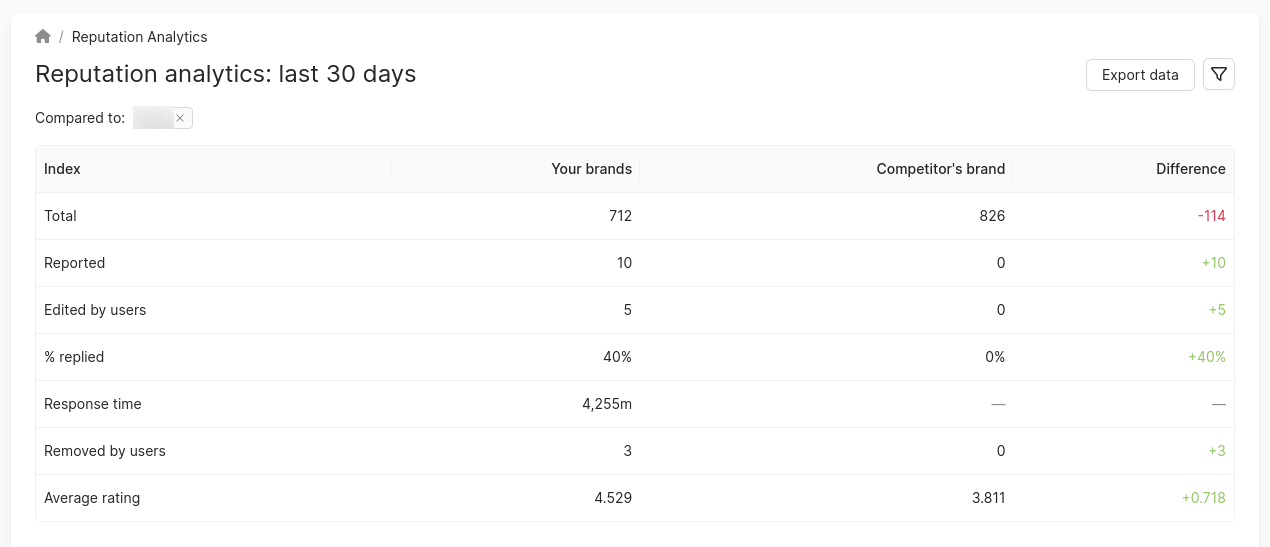
After setting up the Compare with Competitor filter, in the Reviews Analysis page header you can view a table with indicators of your brand and competitor’s brand.
The Difference column shows the difference between each indicator of your brand and the competitor’s brand:
- The difference marked in red shows that your indicator is worse than the competitor’s indicator.
- Green means that your index is better than your competitor’s.
Metrics:
- Total number of reviews - the number of reviews in BrandWizard for the selected period.
- Reported - the number of complaints submitted regarding reviews during the selected period.
- Edited by users - the number of reviews that were changed by users during the selected period.
- % replied - the number of reviews with a reply during the selected period.
- Response time - the average time taken to respond to reviews from the BrandWizard Personal Account during the selected period. Attention! If a competitor does not respond to reviews via the BrandWizard Personal Account, the Response time field will not display data for them. Instead, a dash will be shown.
- Removed by users - the number of reviews that were deleted during the selected period.
- Average rating - the average rating of reviews in BrandWizard for the selected period. Attention! Deleted reviews are not included in the calculation.
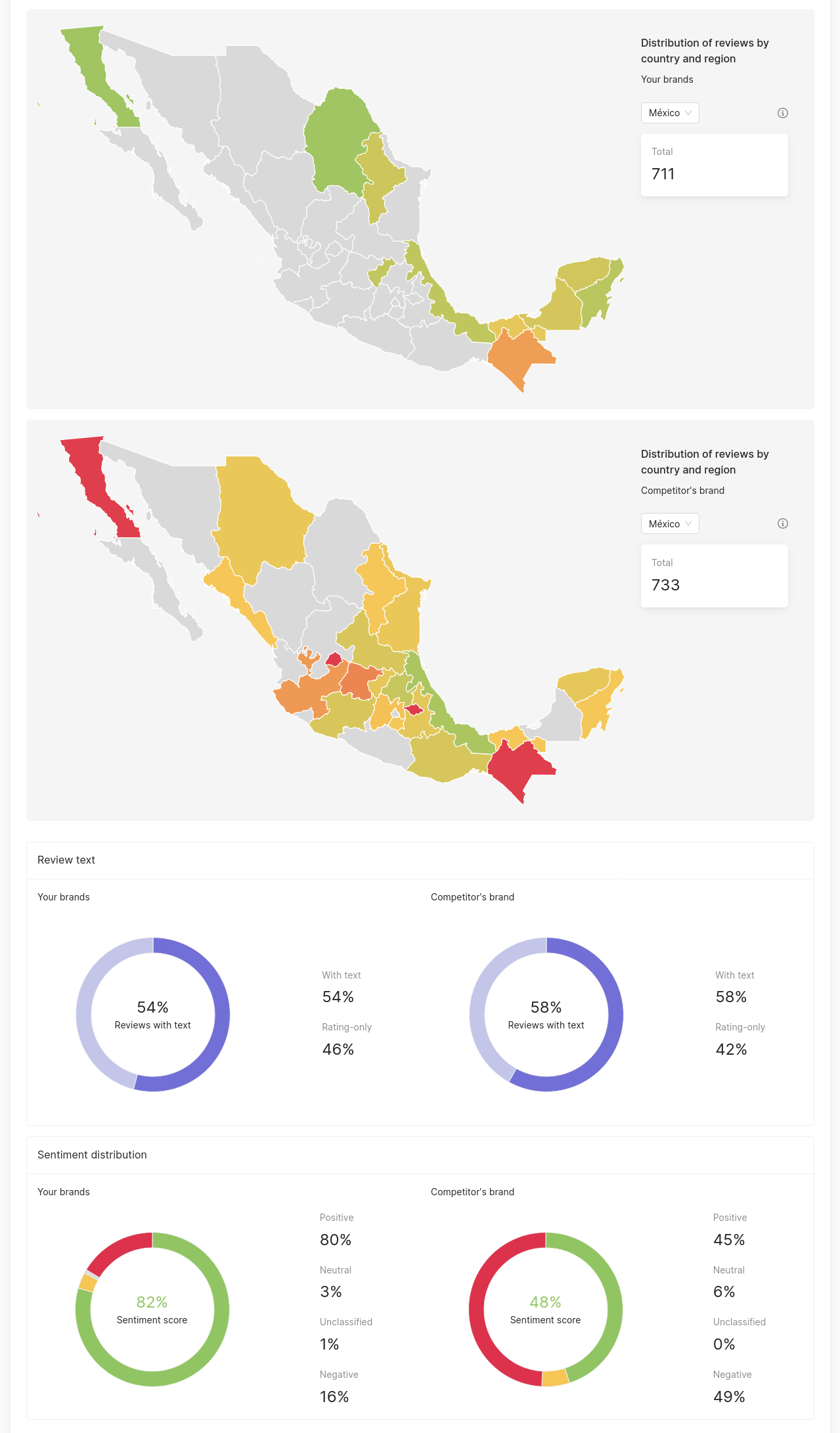
The following sections on the page will be presented to you in two versions: one for your brand and one for the competitor's brand, except for the Comprehensive comparison of reviews block. You can find out more about it here.
You can learn about comparing the review analysis with another time period further.