![logo2.png]](https://help.brandwizard.io/hs-fs/hubfs/logo2.png?height=40&name=logo2.png)
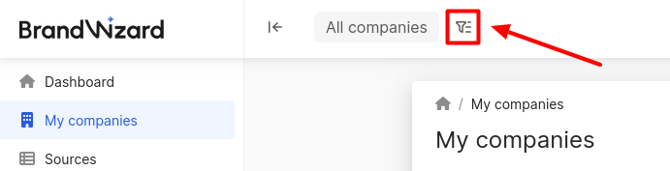
On the right, a window with filters will open. The following filters are available: by group, by brand, by country, by region, by city, by street, by company name, by branch code.
You can add more than one filter in each field: several groups or several cities.
To filter by group, click on the Group field and start entering a group of locations, then select the necessary one from the drop-down list.
When selecting two or more groups, a Company belongs field will appear, allowing you to choose: to all groups or to at least one of the groups.
To sort by brand, click on the Brand field and start entering the brand, then select the necessary one from the drop-down list.
To filter by country, click on the Country field and start entering the name of the country, then select the necessary one from the drop-down list.
To filter by region, click on the Region field and start entering the name of the region, then select the necessary one from the drop-down list.
To filter by city, click on the City field and start entering the name of the city, then select the necessary one from the drop-down list.
To filter by street, click on the Street field and start entering it, then select the necessary one from the drop-down list.
To filter by company name, click on the Company Name field and start typing, then select the necessary one from the drop-down list.
To filter by branch code, click on the Branch Code field and start typing, then select the necessary code from the drop-down list.
In the next field, you can sort companies by status:
-
Close.
-
Temporary close
-
Open
In the Company Activity field, you can filter active or inactive locations. Information about the company's activity is transmitted to BrandWizard via a file or feed.
Attention! After you select a value in this filter, it will be saved even if you close the page or log out of your account and then reopen or log back in.
In the Company is paid field, you can filter companies based on the status of their license activity:
- Paid - will display companies with active licenses.
- Not paid - will display companies whose license has expired.
In the same Requires moderation field, you can filter companies based on whether they are under moderation by a BrandWizard employee:
- Yes - will display companies that require moderation.
- No - will display companies that have passed moderation.
After selecting the necessary filters, click on the Apply.
The filtered company or companies will be displayed in the sections of the Personal Account.
If there is a need to add additional filters, go back to the Filters and select the appropriate ones. With the Cancel button, you can clear filters to previously applied ones.
To reset all previously selected filters, click on the Reset button, then click Apply. All companies will be displayed in the sections of the Personal Account.
How to check the feed and import company data, you can find out further.