![logo2.png]](https://help.brandwizard.io/hs-fs/hubfs/logo2.png?height=40&name=logo2.png)
In this article, you will learn the following information:
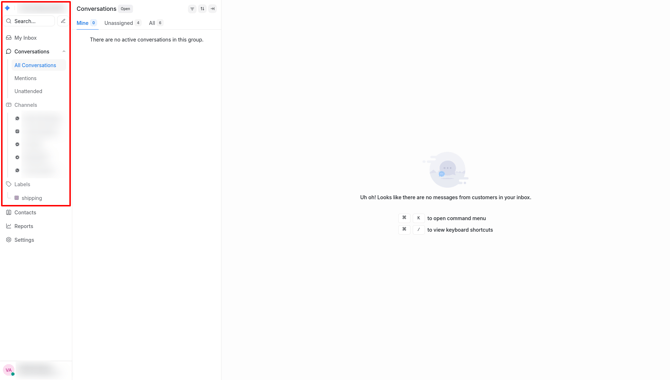
The screenshot below displays a typical conversation management panel.
Attention! You can reply to a customer's message from Facebook within 24 hours. If no response is sent within this period, the conversation will be blocked, and you will no longer be able to reply to the customer. This restriction is set by the inbox itself, and we cannot influence it.
How to switch between companies?
The company name is displayed in the top left corner. If you have multiple companies connected, you can switch between them here.
Menu
- My inbox – displays chats assigned to you.
- Conversations – all conversations received by your account.
- Mentions – conversations in which your colleagues mentioned you.
- Unattended – conversations without responses.
- Teams – internal agent teams created for collaborative work. You can learn more about teams here.
- Channels – channels connected to your Multichat account. You can click on any channel at any time to view only messages received from it.
- Labels – labels created by you to organize conversations. More details about labels can be found here.
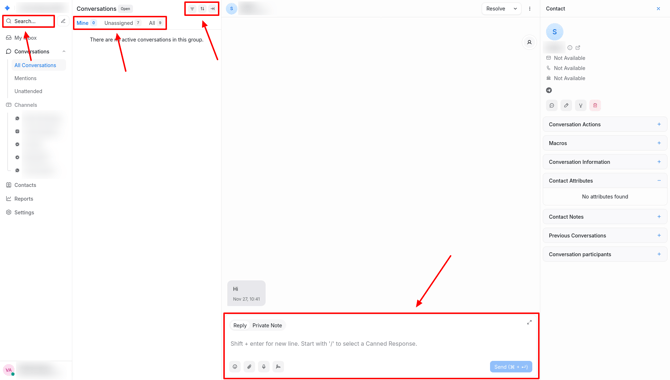
Basic information about conversations
This is the most frequently used part of your panel. Let’s examine it in detail.
- Search bar. Enter a keyword from the conversation or a contact name to find matches.
- Conversation filtering. Select different filters to see only the needed conversations. More about filters can be found here.
- Conversation list. This section displays conversations in chronological order (most recent or newly received at the top). You can switch between the tabs Mine, Unassigned, and All to see conversations assigned to you, not assigned to any agent, or all conversations respectively. Each conversation card shows the message channel, assigned agent, the last sent message, creation time, last message time, and labels.
- Reply window. Here, you can type a message for the customer, use templates, insert emojis, attach files, or even record a voice message. Switching to the Private note tab allows you to send private messages to colleagues and discuss customer issues before replying. You can also expand the window for text input using the icon in the top right corner of the reply window.
When clicking on the three dots, you can perform the following actions:
- Block contact – blocks the contact, preventing them from writing to the chat again.
- Send transcripts – send the full chat transcript to the client, assigned agent, or any email.