![logo2.png]](https://help.brandwizard.io/hs-fs/hubfs/logo2.png?height=40&name=logo2.png)
In this article, you will become familiar with the following information:
- Overview of the form pages area
- How to add/edit pages?
- How to change page titles?
- How to set up the survey in multiple languages?
- How to configure navigation between pages?
- Multi QR Code Page: Company selection form settings
- Input fields
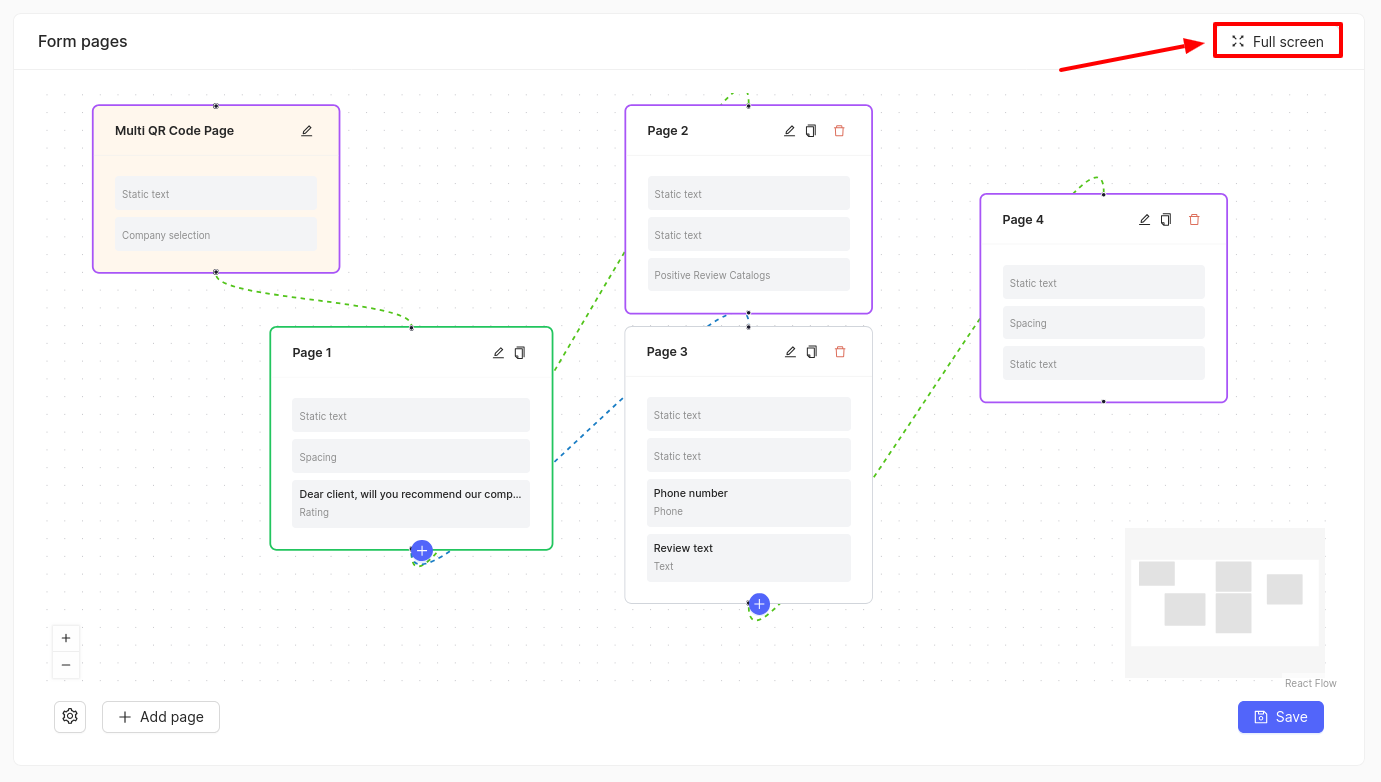
In the area of the form pages, there are blocks (pages) interconnected, representing the survey scenario. You can customize the survey according to your needs: change the sequence of scenarios, add input or selection fields, adjust text size, insert images, and perform other settings.
Overview of the form pages area
By default, a standard survey scenario consisting of 5 pages is presented:
- Multi QR code page — an optional page that is shown to the user only if they access the survey via a single QR code. More details on setting up this page are described here.
- Page 1 (highlighted in green) — the starting page where the survey begins.
- Pages 2 and 4 (highlighted in purple) — the outermost pages, all fields of which do not require any information from the user, for example, a thank you page.
- Page 3 (no color) — a page that the user can only access after meeting certain conditions, such as selecting a rating of less than or equal to 6.
Attention! The Multi QR code page cannot be deleted or copied, and Page 1 cannot be deleted. All other pages can be deleted if necessary, allowing you to create your own survey scenario.
Connections between pages are established as follows:
- Green color — navigation to pages is direct, without any conditions.
- Blue color — navigation to pages occurs when certain conditions are met, for example, selecting a rating less than or equal to 6.
You can expand the form settings area to full screen. To do this, click the corresponding button in the upper right corner of the form.
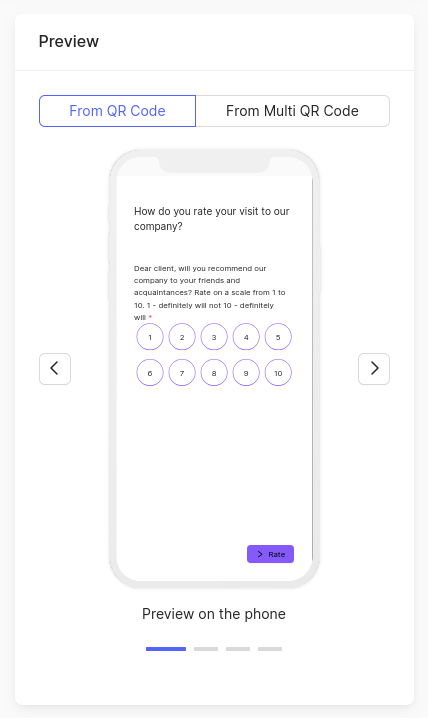
All changes in the pages can be previewed in the survey preview.
How to add/edit pages?
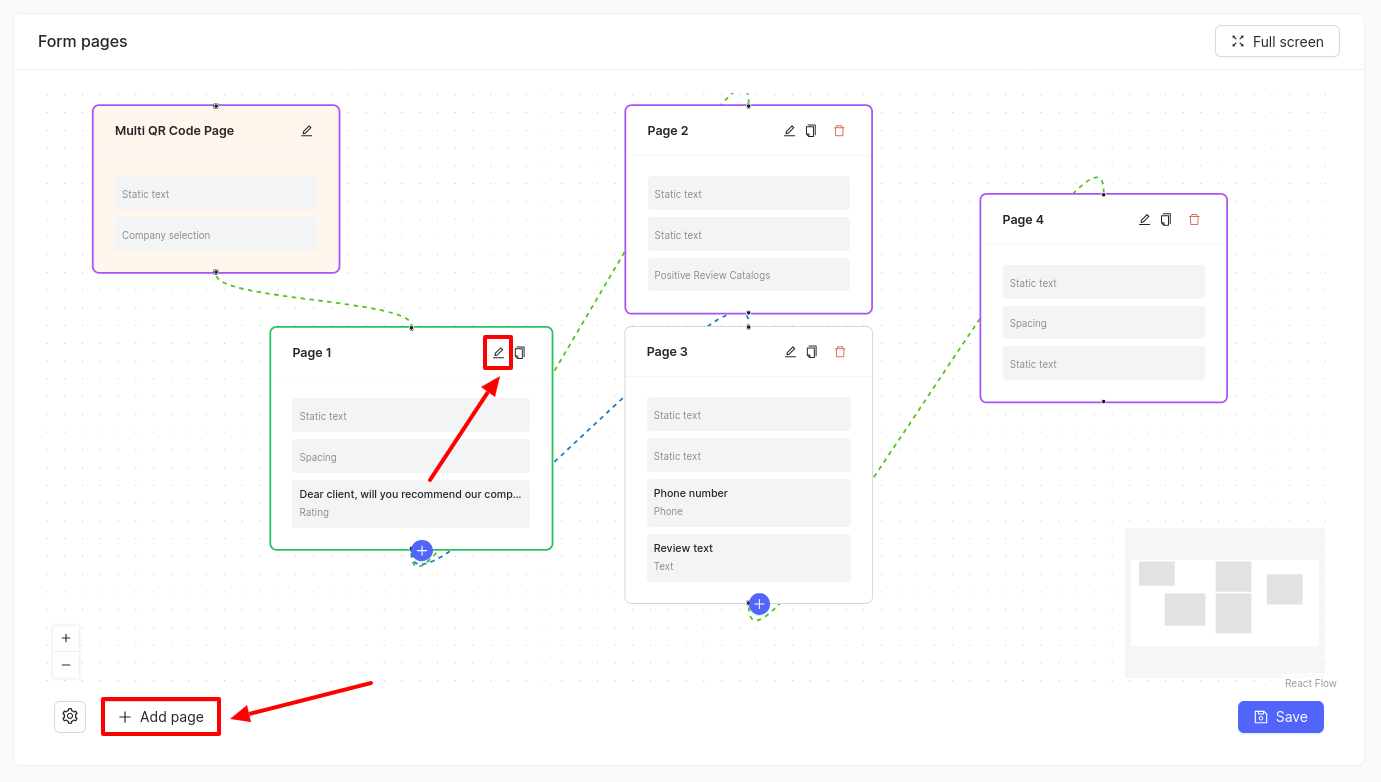
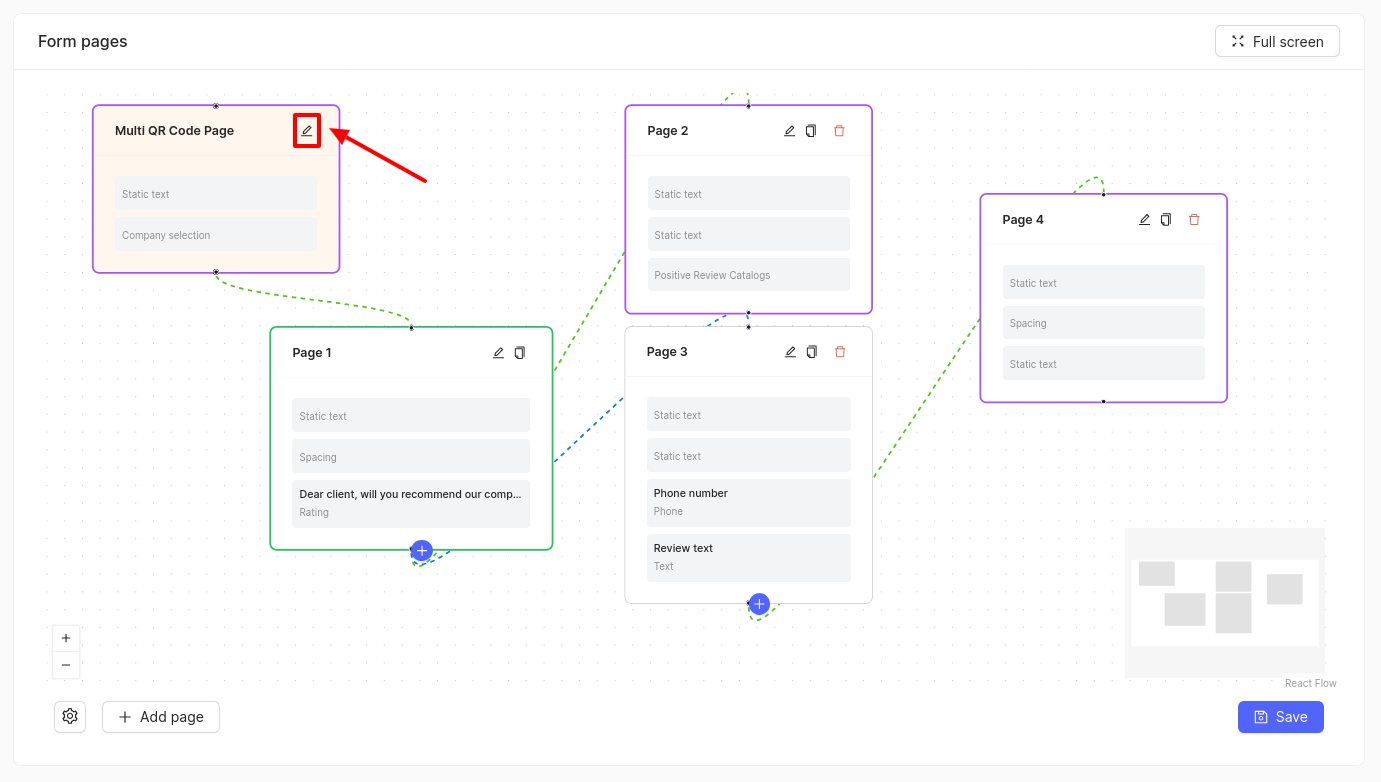
To create a new page, click on Add page. To modify an existing page, click on the edit icon.
How to change page titles?
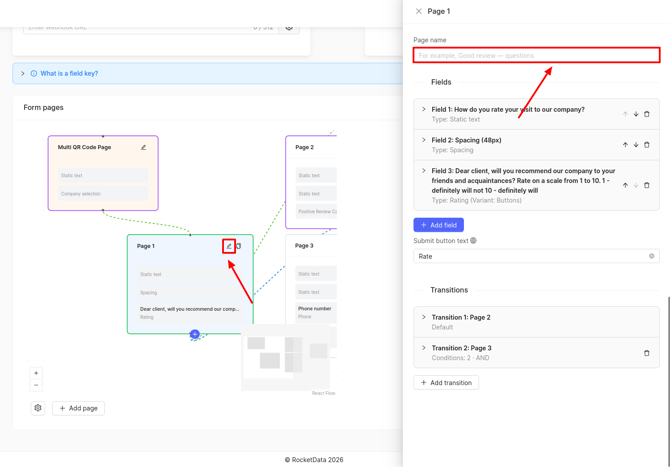
On all pages except multi‑QR‑code pages and mailing pages, you can change the title. To do this, go to page editing and enter the desired name in the first field.
How to set up the survey in multiple languages?
You can configure the survey in multiple languages. To do this, click on the settings button.
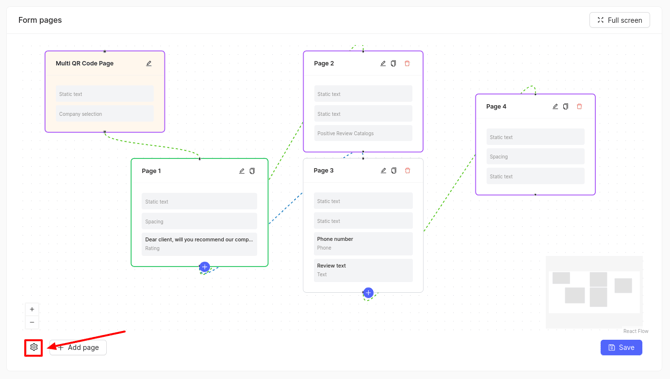
A window will open on the right side, where you can select the necessary languages in the field.
Next, choose which language you will configure the survey for at the moment.
You can also change the editing language in the settings of each page.
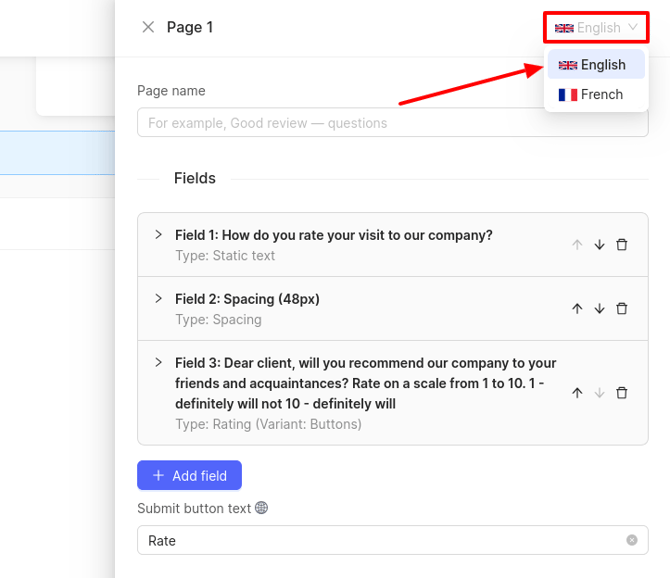
Fields that are configured separately for each language are marked with the corresponding symbol.
How to configure navigation between pages?
To set up transitions between pages (shown as lines on the canvas), click the plus icon at the bottom of the page.
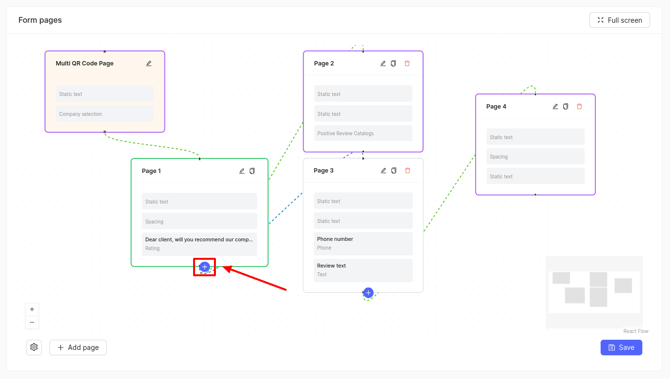
The available pages for navigation will then be highlighted on the canvas. Select the page you need by clicking on it.
Navigation setup will only be available for input fields and promo code fields. If a page contains only static fields, setting up navigation will be unavailable.
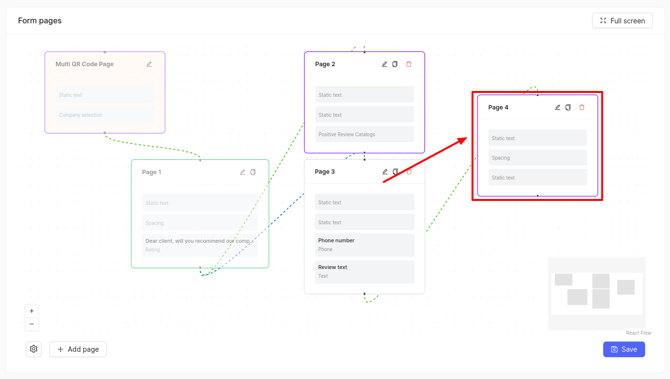
The editing page will open with the created transition.
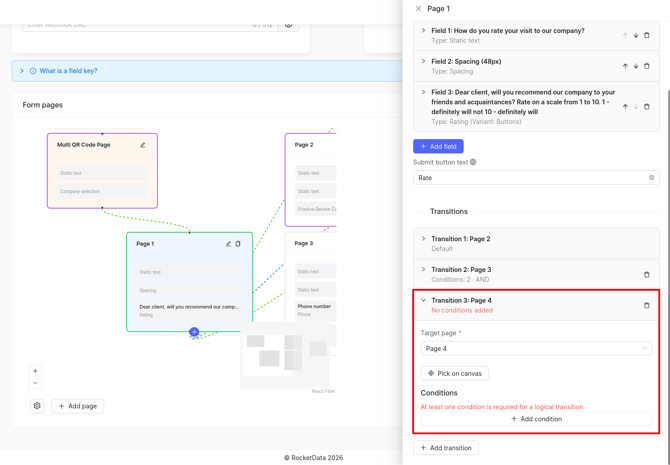
Specify the text for the button that clients will click to move to the next page.
Now set up the default transition – it will be used if none of the conditions from the other transitions are met.
Specify the page that customers will go to after clicking the button. You can choose it from the dropdown list or directly on the canvas by clicking the Pick on canvas button.
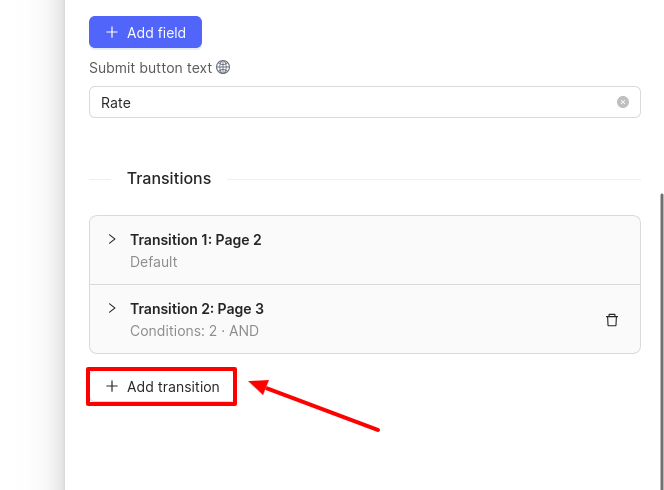
To add a conditional transition, click Add transition.
Next, set up a conditional transition. It already contains the page you selected when creating the transition. You can change it if needed.
Add a condition:
- Select a previously configured field where the client can choose or input a value. The selected data will determine which page the client will navigate to—for example, a company rating field.
- Choose a comparison operator, e.g., the rating should be less than or equal to.
- Specify a value, e.g., 7.
As a result, if the client chooses a rating less than or equal to 7, they will be taken to the page specified in transition 2. If they choose a rating higher than 8, they will be taken to the page specified in transition 1.
For multiple conditions, choose the transition logic:
- AND - when multiple conditions are added, all must be met for the transition to occur.
- OR - when multiple conditions are added, only one needs to be met for the transition to happen.
When only one condition is added, this field can be left unedited.
Please note! If you are using a 5‑point rating system, the threshold scores for transitions must be specified multiplied by 2.
Example:
- Ratings 1–3 → redirect to the review form (the review is saved in the personal account).
- Ratings 4–5 → redirect to the catalog selection page for publishing the review.
To set the threshold correctly in the settings, multiply the selected rating by 2.
For example, for a threshold of "4", specify the value 8 (4 × 2 = 8).
Multi QR Code Page: Company selection form settings
The first block of the Multi QR Code Page will only appear to the user if they access the survey via a single QR code. To edit this page, click the pencil icon.
After creating the QR code, a unified code and a separate code for each company are generated. If clients access through the single QR code, they will see a page where they can select the evaluated company.
An editing window with default fields will open.
In Field 1, you can configure the text displayed above the company selection form, adjusting font size and text alignment.
Field 2 is the company selection form. Here, you can set the search field text.
Additional fields can be added through the Add field button. More details about these are described later in this documentation.
Input fields
How to add a text input field and a review field?
You can add fields for text input and review input. To do this, go to the editing page where you want to add them. Click Add field and choose Text input field or Review text input field.
Configure the following in this field:
- Key - a unique code for the field, e.g., text, review_text; this is automatically filled.
- Required field - check this box if clients must fill in this field to proceed.
- Name - specify the field name, e.g., Review text, so clients understand what to input.
- Description - add an explanation, e.g., Enter your review text.
- Display variant:
- Single-line field - for entering just one line of text.
- Multiline field - suitable for longer reviews, allowing multiple lines.
- Input hint - add an example input, which will appear in the field.
How to configure a number input field?
To add a field where clients can input a number, go to the editing of the desired page. Click Add field and select Number input field.
Configure the following options:
- Key - a unique code, e.g., number; filled automatically.
- Required field - check if clients must fill this in.
- Name - specify, e.g., Order number.
- Description - e.g., Enter the number from your account.
- Input hint - an example, e.g., 78.
- Minimum and Maximum - specify the number range clients can input.
- Step - define the increment, e.g., 2.
How to configure a rating scale?
To allow clients to rate your company, provide them with rating options. Navigate to an editing page (commonly Page 1). Choose Add field and select Rating input field.
The selected field can be customized with the necessary settings:
- Key - a unique code for the field, for example, rating. This field is filled automatically.
- Required field - check this box if you want customers to be obligated to select a rating. Without this, they will not be able to proceed to the next page.
- Name - specify the name of the field so that customers understand what information they need to enter, for example, Dear customer, would you recommend our company to your friends and acquaintances?
- Description - add a description to the field, for example, Rate on a scale from 1 to 10. 1 - definitely will not, 10 - definitely will.
- Variant:
- Buttons from 1 to 10.
- Stars from 1 to 5.
- Positive rating threshold - specify the required value, for example, 8.
Attention!
- When editing an existing survey, it is not possible to change the rating scale.
- Due to the possibility of choosing different types of rating scales, negative review ratings collected directly in the personal account will be converted to a 5-point system:
- For a 10-point rating, the score is divided by 2 and rounded up. For example, 9/2 = 4.5, rounded to 5.
- For a 5-point system, it remains unchanged.
Please note! If you are using a 5‑point rating system, the threshold scores for transitions must be specified multiplied by 2.
Example:
- Ratings 1–3 → redirect to the review form (the review is saved in the personal account).
- Ratings 4–5 → redirect to the catalog selection page for publishing the review.
To set the threshold correctly in the settings, multiply the selected rating by 2.
For example, for a threshold of "4", specify the value 8 (4 × 2 = 8).
After setting up the rating scale, configure the transition to the next pages. More details on this can be found here.
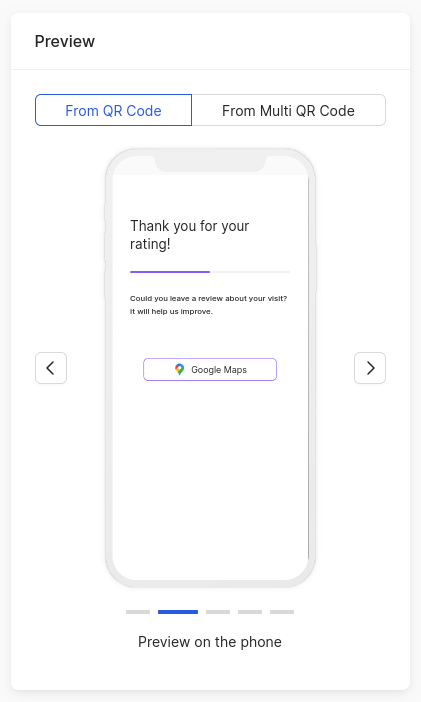
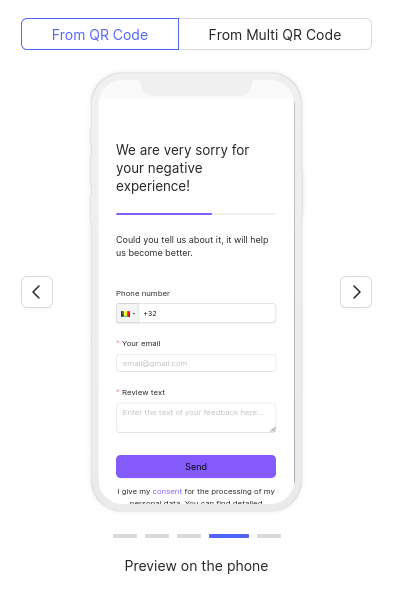
If the client selects a rating of 8 or higher in the mobile version, they will be directed to the Thanks for the good rating! page and can submit a review to the sources or website specified in the settings.
|
 |
|
 |
How to set up a selection field?
To add a field where the customer can select a value, go to editing the required page. Click Add field and choose Select field.
In the selected field, you can configure the following:
- Key - this is a unique code for the field, for example, select. This field is filled automatically.
- Required field - check this box if you want customers to necessarily fill in this field. Without it, they cannot proceed to the next page.
- Name - specify the name of the field so that customers understand what information they need to enter, for example, Choose the service name.
- Description - add a description to the field, for example, Specify the name of the service provided.
- Display variant - choose Select list or Radio buttons. If you want the customer to select multiple values, check the Multiple selection checkbox.
- Input hint - add an example of input, which will be displayed directly in the field, for example, Dry cleaning of outerwear.
In the Options field, add the values that will be displayed for customer selection. To do this, click Add option.
The following fields will be displayed:
- Option value - the field type, for example, option_1. This field is filled automatically.
- Option name - a value the customer can choose. For example, Dry cleaning of outerwear.
- To add another option, click Add option again.
How to set up fields for collecting information from the customer: phone, Email, file, date?
You can add fields for collecting customer information: phone number, email address, photo (for example, for a review), as well as date (for example, date of the visit). To do this, go to editing the required page. Click Add field and select the necessary fields:
- Phone input field.
- Email input field.
- File input field.
- Date input field.
In these fields, you can configure the following:
- Key - this is a unique code for the field, for example, phone, email, file, date. This field is filled automatically.
- Required field - check this box if you want customers to necessarily provide data in this field. Without it, they cannot proceed to the next page.
- Name - specify the name of the field so that customers understand what information they need to enter, for example, Phone number.
- Description - add a description to the field, for example, Please specify your phone number so we can contact you to resolve the issue.
- Input hint - add an example input, which will be displayed directly in the field, for example, +375(29)110-00-00.
For file upload fields, instead of a hint, you need to specify the maximum number of files that customers can upload.
To configure the date input field, set the display option:
- Date,
- Date and time,
- Month,
- Week,
- Year.
Also, select the period of dates accessible to the customer for selection.
Static fields
How to add static text?
You can add static text to pages, such as a page header. To do this, go to editing the required page. Click Add field and select Static text.
In the added field, specify the text, for example, We are very sorry that you had a negative experience! Then, choose the font size and alignment on the page.
How to add spacing between fields?
Add space between fields. To do this, go to editing the required page. Click Add field and select Spacing.
Choose the height of the spacing and use the up/down arrows to adjust the setting between the fields where the spacing is needed. For example, between Field 1 and Field 2.
How to add an image to the survey?
To add an image to the survey, go to editing the necessary page. Click Add field and select Image block.
Add an image to the page by selecting it from your device or specifying a link. Choose the image height and alignment on the page.
How to add an address and a comment to it in the survey?
If you want the company's address and a comment about it to be displayed on the survey pages, go to editing the required page. Click Add field and select Company address block and/or Company address comment block.
Specify the font size and alignment for the text in the field.
How to set up a catalog selection form for sending reviews?
To enable a customer to leave a review on a catalog, first select the platforms you need or add your own link in the main fields. More details about this are described here. After that, you can set up the form on the survey page. To do this, go to editing the required page.
Click Add field and choose:
- Positive review catalog block, if you are setting up a page where the customer will go after selecting a positive rating (above your set threshold).
- Negative review catalog block, if you are setting up a page where the customer will go after selecting a negative rating (below your set threshold).
If you want to collect all reviews regardless of the customer's rating, simply select one of the provided blocks.
You can learn how to set up navigation to different pages depending on the user's rating here.
How to add links to social networks in the survey?
If you want to include links to social networks in the survey, first specify the links in the main fields of the page (instructions on how to do this can be found here). Then, go to editing the required page. Click Add field and select Social media links block.
How to set up promo code sending?
To set up promo code delivery, create a promo code and enable this option in the main fields.
- How to create a promo code can be learned here.
- How to enable the sending option can be learned here.
Then there are two options for sending the promo code:
- After the customer adds their contact details.
- After selecting a catalog.
First option: after the customer adds their contact details
Go to editing the required page. Click Add field and select Promo code sending.
Specify the text for the email. If this field is left empty, the text from the promo code settings will be used.
The customer must provide their contact details (name, email). How to add fields for them can be found here.
Please note! The promo code will be sent when the submit button is clicked on that step, provided that the client_name and client_email fields are filled in. The system will attempt to send the promo code no more than once per survey completion.
Second option: after selecting a catalog
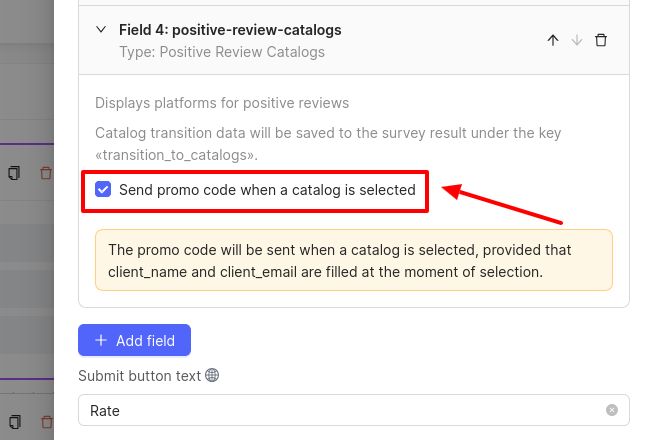
Go to editing the page where the catalog configuration blocks for positive and negative reviews are added. Click on the desired field and check the Send promo code when a catalog is selected box.
- To have only customers with positive reviews receive the promo code, check the box only in the positive reviews configuration block.
- To have customers with negative reviews receive the promo code, check the box in the negative reviews configuration block.
The customer must provide their contact details (name, email). How to add fields for them can be found here.
Please note!
-
The promo code will be sent when a catalog is selected, provided that the client_name and client_email fields are filled in at the moment of selection.
-
Catalog transition data will be saved to the survey result under the key «transition_to_catalogs».
How to add contact detail fields for sending promo codes?
For the promo code to be sent, the client needs to provide their contact details: name, email. To do this, click Add field again and select the necessary fields.
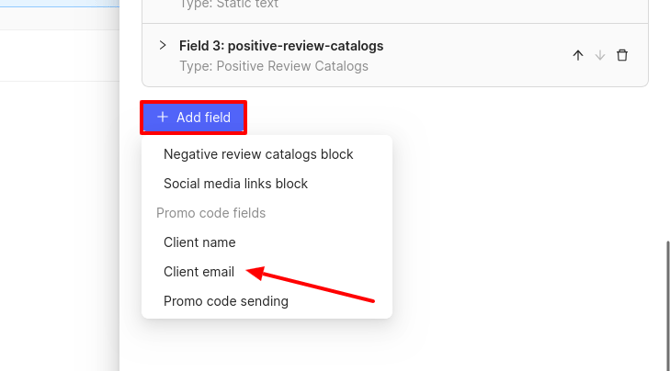
In the fields Client Name, and Client Email, you can configure the following:
- Key — this is a unique code for the field, e.g., client_name, client_email. This field is filled automatically.
- Required field — check this box if you want customers to be required to fill in this field. Without it, they cannot receive the promo code.
- Name — specify the name of the field so that customers understand what information to enter, e.g., Full name.
- Description — add a description to the field, e.g., Enter your email address so we can send the promo code.
- Input hint — add an example input, which will be displayed directly in the field, e.g., example.com.
For the Client name field, select the display option:
- Single-line field — can only input one line of text.
- Multiline field — allows entering a large amount of text in multiple lines, suitable for leaving reviews.