![logo2.png]](https://help.brandwizard.io/hs-fs/hubfs/logo2.png?height=40&name=logo2.png)
In this article, you will learn the following information:
- Rating filter
- Basic filters
- Employee filters
- Tag filters
- Additional filters
- How to clear a filter?
- How to save filters?
Please note! When using the filters Content of reviews → With text and Replies to reviews → Unanswered, deleted reviews with responses will also appear in the selection. This behavior is normal for the system. If you want to exclude such reviews from the display, use the filter Deleted reviews → No.
Sorting of reviews is available on the page:
- New first (default) — reviews with the most recent publication date in the catalog are shown first.
- Old first — reviews with the earliest publication date in the catalog are shown first.
- Rating ascending — reviews with the lowest rating are shown first.
- Rating descending — reviews with the highest rating are shown first.
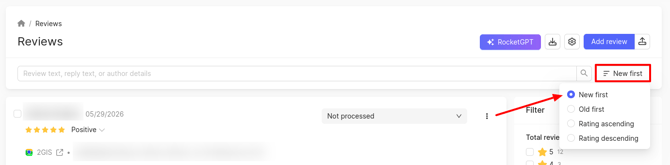
The remaining filters are located on the right side of the page, with more details about them described below.
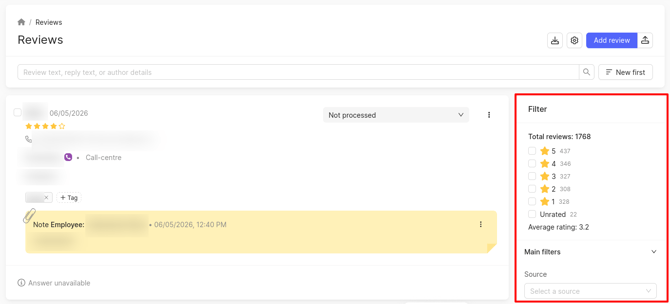
Rating filter
To filter reviews by rating, select the desired ratings. Next to each rating value, the number of reviews corresponding to it is shown.
The average rating of all reviews is displayed next to the ratings. It is automatically recalculated based on the selected rating filters. The rating is calculated as the arithmetic mean: the sum of all ratings divided by their number:
- If you have filtered reviews to show only those with a rating of 4, the average rating will be 4.
- For example, you selected ratings 1 and 2, and the sample contains 2 reviews with one star and 4 reviews with two stars. Then the average rating is calculated as follows:
(1 + 1 + 2 + 2 + 2 + 2) / 6 = 1.7
Basic filters
By source
To sort by sources, click on the Source field and select the desired options from the drop-down list:
-
If all catalogs are required, select All sources. Then click Ok.
-
To select multiple catalogs, click on the desired options. Then click Ok.
By time period
To sort by date, click on Period. Then, select the date range for which you want to filter the reviews:
- Publication date — sorts by the date the review was created in the catalog.
- Collection date — sorts by the date when the review was collected from the catalog.
If you need to sort reviews for a specific day, you should specify the same date in both Date From and Date To.
To select a period covering all time up to a certain date, you only need to fill in Date To.
By doctor (for medical organizations only)
To sort by doctor, click on the Doctors field and select the desired ones from the drop-down list.
This filter will be available only for brands and companies related to medicine that have catalogs with doctor reviews enabled. These are all sources from the Medicine group.
By review status
To sort by status, click on the Status field and select the desired options from the drop-down list.
By presence of a reply
To sort by replies to reviews, click the corresponding field and choose the necessary variant:
- Has reply.
- No reply.
Attention!
- If the Has reply filter is selected, only reviews with an official response will be displayed. This means that if a review has unofficial responses, they will fall under the No reply filter.
- If a response was left in the personal account but has not yet been published on the platform, such a review will fall under the No reply filter. Once the response is published in the catalog, the review will fall under the Has reply filter.
By content (has text / no text)
To sort by content of reviews, choose the necessary variant in the corresponding field:
- With text.
- Without text.
By reply availability
To sort by possibility of an answer, choose the necessary variant in the corresponding field:
- Yes.
- No.
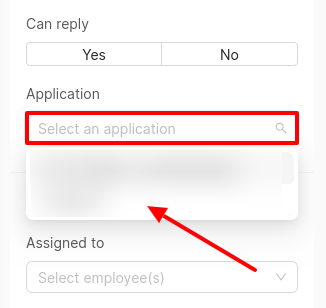
By Application
If your apps are available in the App Store and Google Play Store, you can filter reviews by a specific app. To do this, click the field and select the required app.
Employee filters
By responsible employee
To sort by employees responsible for reviews, click the Assigned to field and choose the appropriate ones from the drop-down list.
By employee who replied
To sort by employees who responded to the reviews, click the Replied by field and choose the appropriate ones from the drop-down list.
By date of employee's reply
To sort reviews by the date of the employee's response, click on the field and select a date range.
Tag filters
By presence of tags
To sort by tags, choose the necessary variant in the corresponding field:
- Has tags.
- No tags.
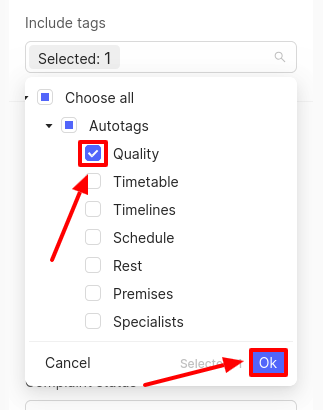
By specific tags
To sort reviews by specific tags, select the desired options from the dropdown menu and click Ok. If the tags are organized into groups, they will be displayed accordingly. You can create and manage tag groups on the Tags page — more details are available here. Additionally, automatic groups may be displayed, such as Autotags, QR code tags, and Mailings tags. These groups include tags automatically assigned to reviews matching the auto-tagging category or left by customers via QR codes/Mailings.
Additional filters
By notes
You can filter reviews by the presence of notes. To do this, select the desired value in the corresponding filter: Yes or No.
By hidden reviews
To sort by hidden reviews, select the desired option in the corresponding field:
- Yes
- No
More information on how to hide reviews can be found here.
By deleted reviews
To sort by deleted reviews, choose the necessary variant in the corresponding field:
- Yes.
- No.
By complaint status
In the Complaint status field, you can filter reviews by the status of complaints sent against them. You can select multiple options for filtering:
- Not sent — reviews that have no complaints sent against them will be displayed.
- Sent — reviews for which the complaint is under review by the catalog will be displayed. If the complaint is deemed justified, the review will no longer appear on the platform.
- Approved — reviews with a complaint approved by the catalog will be displayed.
- Declined — reviews for which the complaint has been rejected by the catalog will be displayed.
By auto-reply type (template / neural network)
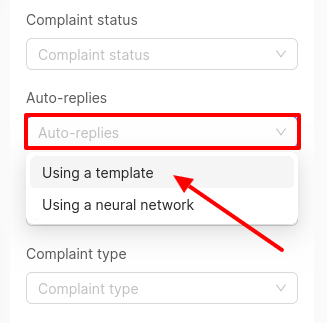
To sort by auto-replies, click on the Auto replies field and select the desired options from the drop-down list.
Attention! If a date in the past is specified when creating a rule, the auto-reply may not appear immediately for old reviews, but only within 24 hours.
- When selecting the Using a template filter, reviews for which auto-replies created using a template were suggested or sent will be displayed.
- When selecting the Using a neural network filter, reviews for which auto-replies created using a neural network were suggested or sent will be displayed.
More information about creating auto-reply rules can be found here.
Attention! If a filter by date has been set, then sorting will be carried out by the date of the reviews to which the auto-replies have been sent, and not by the date of their sending. I.e. if a date is selected, for instance 18.02.2022, then the page will display reviews for 18.02.2022 with auto-replies.
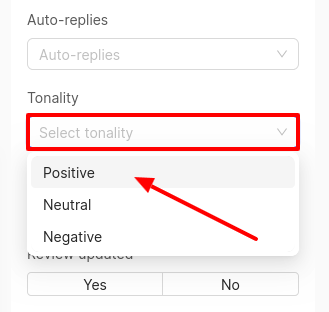
By sentiment
In this field, you can filter reviews by their sentiment: Positive, Neutral, Negative. You can select several options at once for filtering. More information on how to set sentiment for a review can be found here.
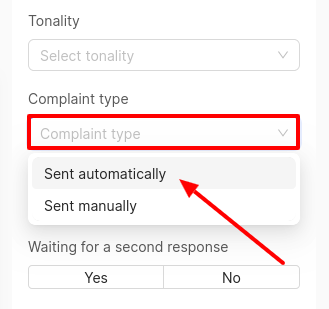
By complaint type (automatic / manual)
In the Complaint type field, you can filter reviews using the following filters:
- Sent automatically — filters reviews for which automatic complaints were sent.
- Sent manually — filters reviews for which manual complaints were sent.
By review updated
To sort by review changes, choose the necessary variant in the corresponding field:
- Yes.
- No.
By reviews waiting for a second answer
To sort by reviews waiting for a second answer, choose the necessary variant in the corresponding field:
- Yes.
- No.
By review type (brand / company)
To sort by review type, choose the necessary variant in the corresponding field:
- Brand.
- Company.
By review verified (passed moderation)
To filter reviews that have passed/failed moderation on the catalog, select the desired option in the corresponding field:
- Yes.
- No.
By publication of the official reply
You can filter reviews by published official replies on the catalogs. To do this, select the desired value in the corresponding filter:
- Yes — shows reviews to which the company has already given a public official reply that has been published on the catalog.
- No — shows reviews that either have no official reply at all, or the reply has not yet appeared on the catalog (even if it has been sent), or have only unofficial replies.
How to clear a filter?
To cancel all sorting, click on Reset filter.
How to save filters?
You can save the selected filters so that they are not reset when you switch to another section or log out of your personal account. When you return to the Reviews section, these filters will be applied automatically. If desired, you can disable this option.
How to respond to a review, you can find out further.