![logo2.png]](https://help.brandwizard.io/hs-fs/hubfs/logo2.png?height=40&name=logo2.png)
In this article, you will learn the following information:
How to filter contacts?
You can sort the contact list based on the presence of a specific criterion. To do this, click on the grouping button, select Sort by, and choose the criterion.
Next, filter the contacts in ascending or descending order for the selected criterion. Click on Ordering and choose the desired value.
You can also filter contacts by their specific values. Follow these steps:
- Click the Filter button at the top of the Contacts section.
- Select a filter from the dropdown menu (for example, name or email) and set the condition to Equal, Not equal, Contains, or Does not contain.
- Enter the required value and click Apply Filters.
You can add more filters using AND/OR operators:
- The AND operator indicates that both conditions must be met. For example, if you select Name in one filter and Email in another, only contacts matching both filters will be shown (matching name and email).
- The OR operator indicates that at least one condition must be met. For example, if you choose City in one filter and Country in another, contacts with either matching city or country will be displayed.
How to save a filter?
After applying filters, the Save Filter option will appear. Saving a filter allows quick access to the sorted contact list.
First, click the Save Filter button.
Name the filter and confirm by clicking Save Filter.
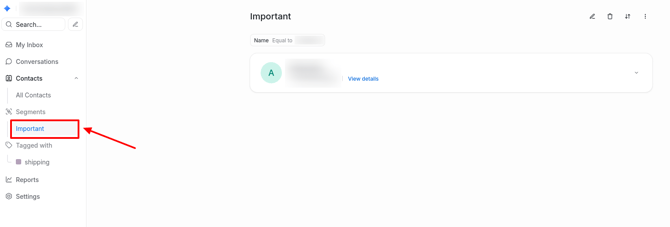
Later, to access the contact list sorted by this filter, select it from the sidebar menu.
How to group contacts by tags?
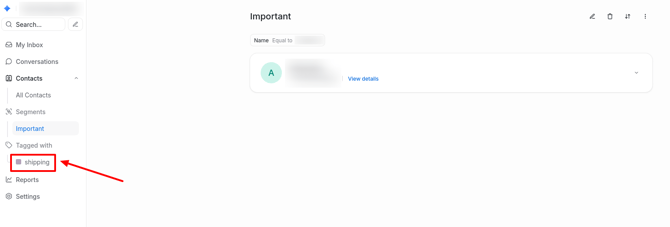
If tags have been added in dialogues, contacts can be filtered by them. You can learn how to create and use tags here.
To filter contacts by tags, go to the Contacts section in the menu and select the desired tag.