![logo2.png]](https://help.brandwizard.io/hs-fs/hubfs/logo2.png?height=40&name=logo2.png)
In this article, you will learn about:
- How to create/edit a story?
- What data about created stories is shown in the section?
- How to view story submission details for each company?
You can add Stories — images with overlaid text — to your company's profile on Yandex Maps to share your news and services.
Use stories to tell about your company, explain how to reach you, or highlight features of your products or services. Add a button to a story, give it a name, and include a link for users to follow.
Make sure your Yandex profile is verified. Learn how to do this here.
Attention! If you have multiple brands, you need to create the same story several times, selecting each brand separately. This is how the functionality works due to Yandex's business logic and limitations.
There are rules for publishing stories. The text and key phrases in the story should be meaningful and informative, and links should lead to the company's website or social media page. In the story, you cannot use:
- Slang, rude, and colloquial expressions.
- Profanity.
- Insults, threats, aggressive calls, instigations to cruelty or violence.
- Materials that create a negative attitude towards norms of behavior, goods, services, or other companies.
- Shocking and repulsive content.
- Pornographic materials.
- Political calls and propaganda.
- Inaccurate information and knowingly false statements.
- Words or phrases of tragic themes.
- Personal data.
- Yandex brand.
- Advertising of certain topics:
- Products and services related to causing harm to humans or property.
- Goods and services prohibited by law.
- Weapons and related goods.
- Without a clear definition of the advertising object: a product or service.
- Programs and services for boosting ratings on social networks, spam mailing, anonymizers, and ad-blocking programs.
- Providing transportation as advertising structures, as well as services for converting vehicles into such structures.
- Job offers where the nature of the activity is unclear.
- Cryptocurrency and actions related to it.
- Distance selling of jewelry.
- Alcoholic beverages.
- Dietary supplements presented as medicines.
- Tobacco products, smoking accessories, and related accessories.
How to create/edit a story?
Go to the Stories tab and click Create story.
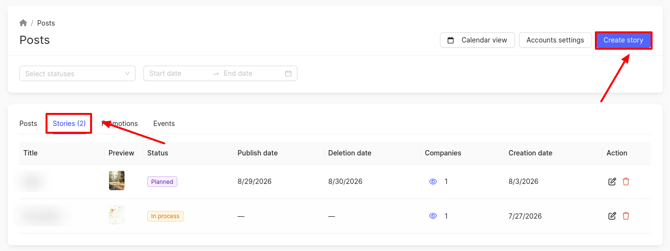
To edit a story, click the edit icon.
In the window that opens, choose how to select companies for the story:
- Select companies manually — this option lets you manually pick the companies you need. If a new company is added to your brand later, you must manually add it in the story settings for the story to be sent.
- Select all companies of the brand — all companies of the brand are selected automatically, and the story will be added for them automatically. If a new company appears under the brand, the story will be added without extra steps.
If you choose Select all companies of the brand, specify the brand for the story and click Next. The story upload window will open (described later in this article).
Attention! The story will not be added for companies that are not verified in the Yandex catalog. Learn how to verify here. If you chose Select all companies of the brand, the story will be automatically added for a company once it is verified. With manual selection, you must manually add that company.
If you choose Select companies manually, click Next. A company selection window opens.
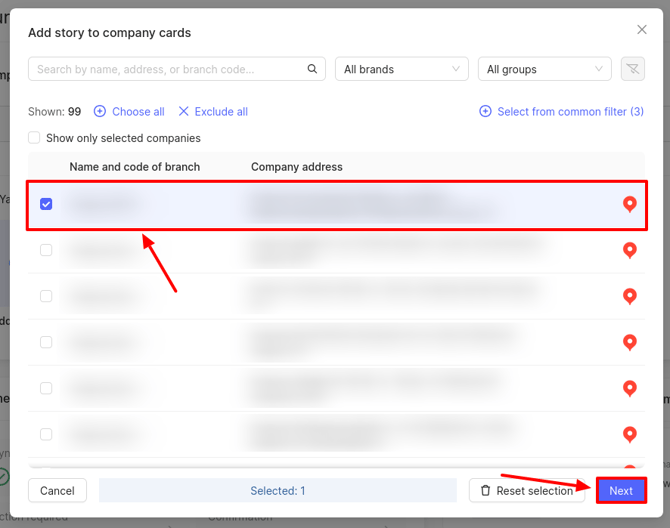
Select the desired companies from the list and click Next. Closed and temporarily closed companies will be absent from the list — you cannot send a story to them.
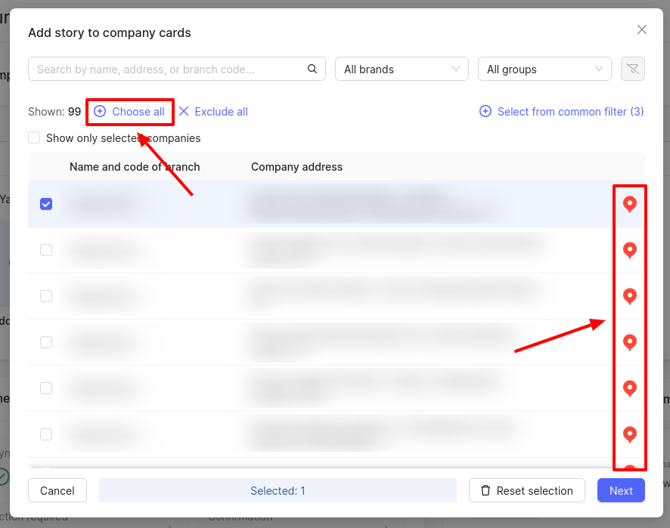
To select all companies, click Choose all.
Attention! This button will be unavailable if you have multiple brands. You need to create the same story multiple times, selecting each brand separately. This is how the functionality works due to business logic and Yandex's limitations. You can select a brand in the All Brands filter.
A Yandex catalog icon appears in the right column of the list. If it is grayed out, make sure the source is verified. Learn how here. If the catalog is verified but the icon remains gray, contact your manager.
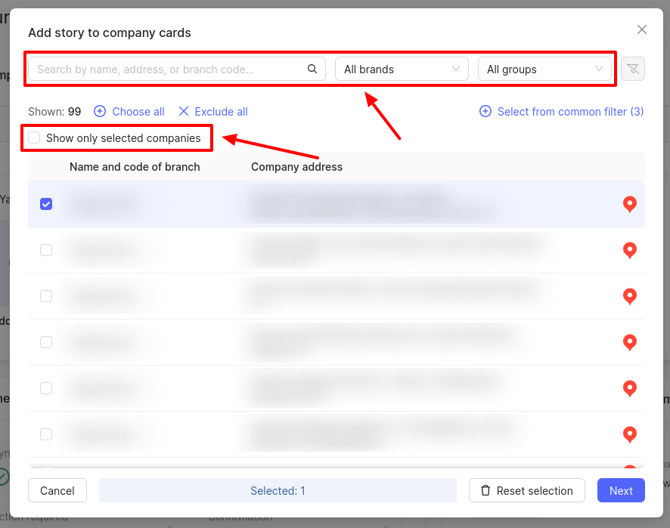
To find the desired company, you can use the search field by name or address, as well as filters by brands and groups. You can view the already selected companies to understand which locations are still missing. To do this, check the box for Show only selected companies.
If the necessary companies were sorted in the top filter, they can be selected by clicking on Select from common filter. More information about this filter can be found here.
Next, click or drag files into the upload area.
File requirements:
- File format: JPG or PNG.
- Image resolution: from 100 × 68 to 5000 × 5000 px.
- Maximum file size: 10 MB.
- Recommended aspect ratio: 9:16.
- Number of photos per story: up to 10.
- Maximum number of stories to upload: unlimited.
- Maximum number of stories displayed: the 10 most recently uploaded.
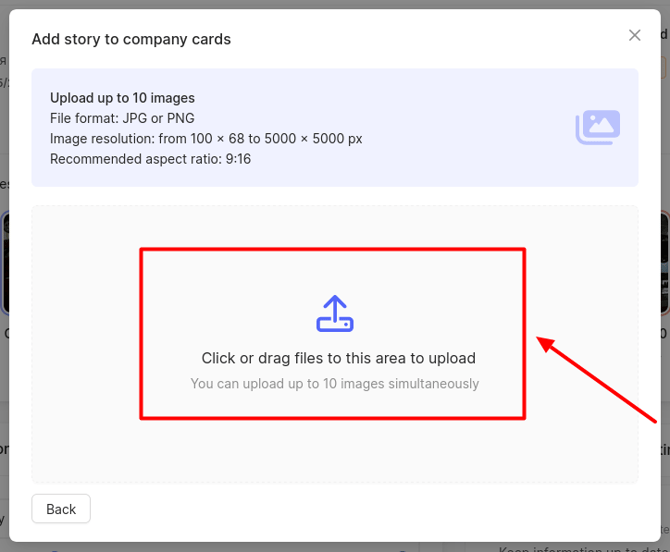
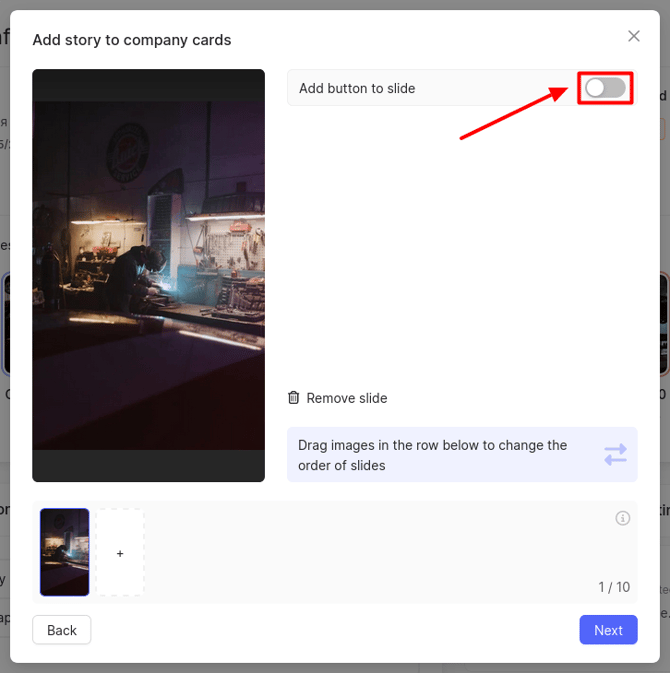
In the next window, all your uploaded slides are shown.
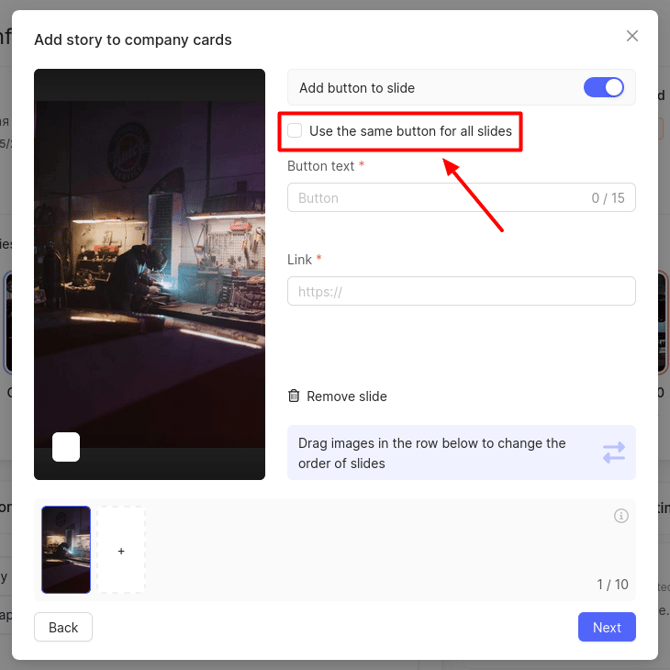
You can add a button to them by toggling the corresponding switch.
To use the same button for all slides, check the box.
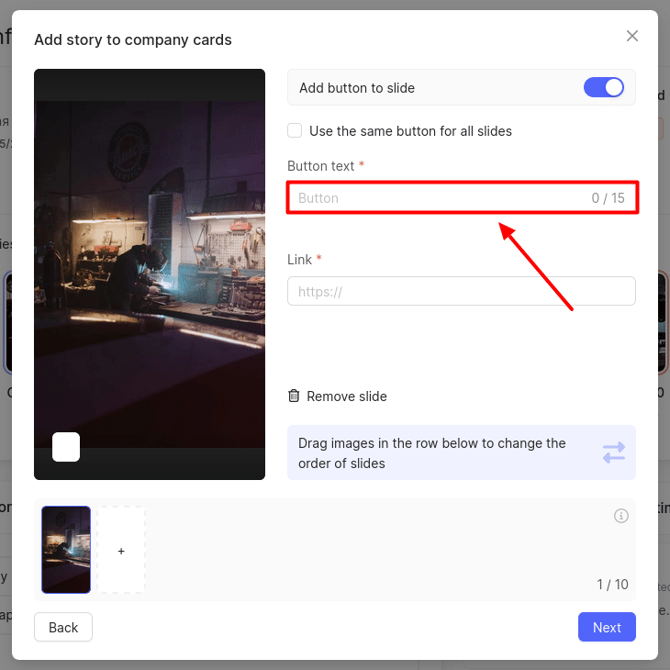
Then enter the button text.
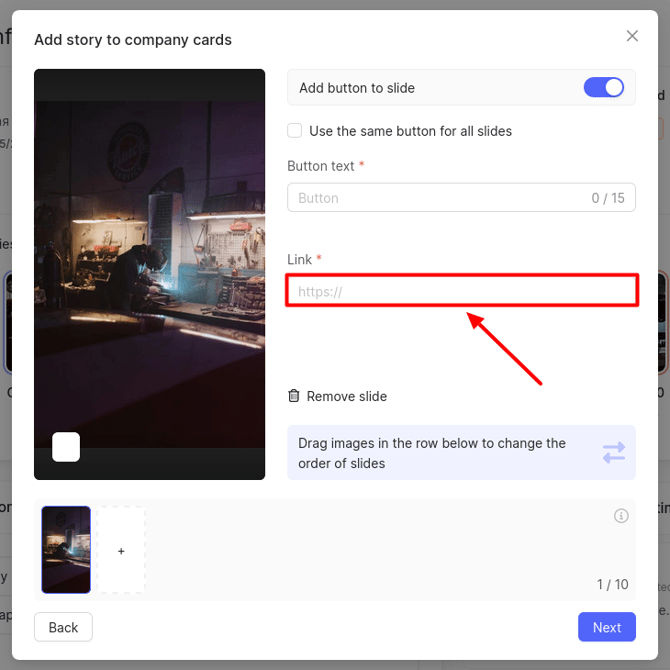
Next, specify the link users will go to when they click the button.
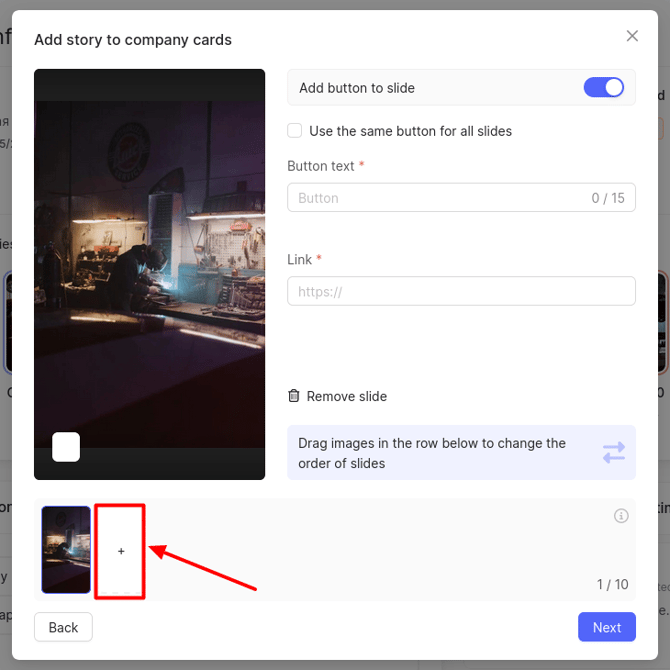
To upload another slide, click the plus icon.
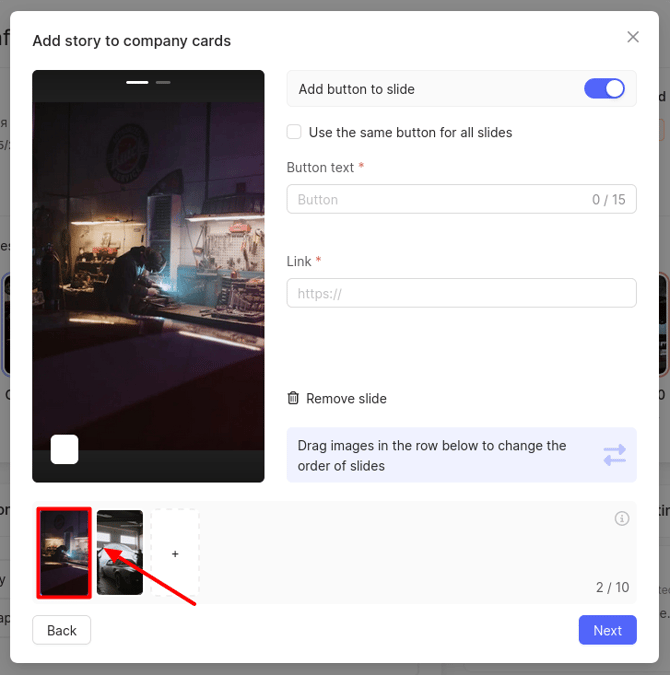
To rearrange slides, click and hold a slide with the left mouse button, then drag it left or right.
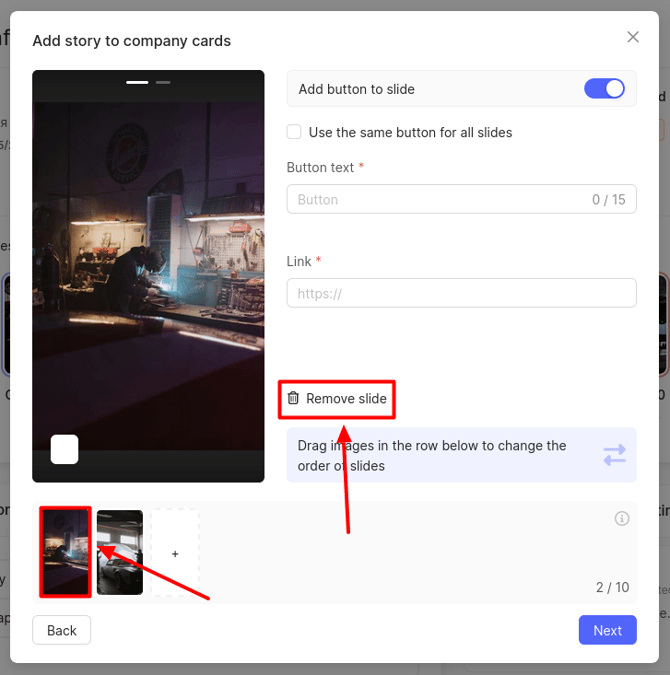
To delete a slide, click on it and then click the delete button.
Click Next.
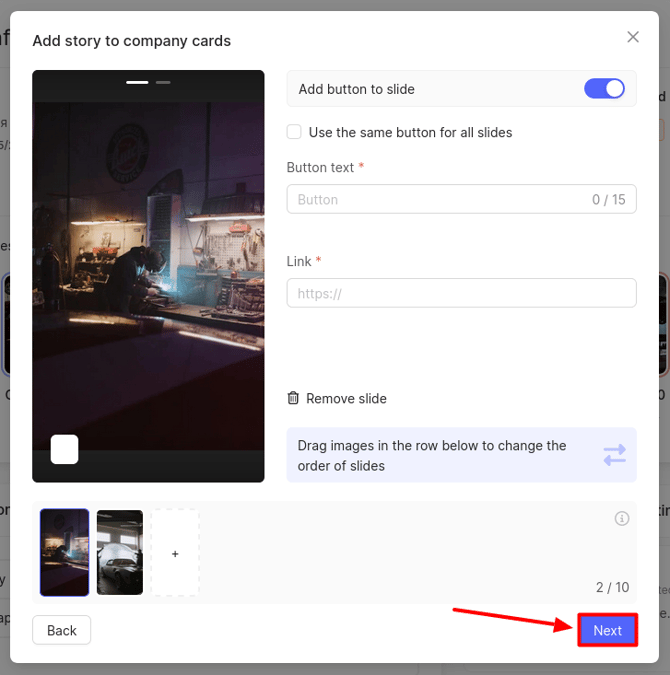
A window opens where you enter the story name. Then set the publication date and the deletion date.
By default, the cover is taken from a slide, but you can upload a different one. Click the appropriate button and choose a file.
If you want to select a cover from another slide, simply click on it.
After all settings, click Publish.
Attention! The story will be published after moderation in the catalog (2–4 hours).
What data about created stories is shown in the section?
Once created, the story appears in a table with the following columns:
- Title — the name you entered when creating the story.
- Preview — click to view details about the story.
- Status:
- Published — the story has been accepted by Yandex and is published for at least some of the selected companies.
- In progress — a request to create or update has been sent to Yandex, awaiting confirmation.
- Planned — delayed publication: the story has not yet been sent to the catalog, waiting for the set publication date.
- On moderation — Yandex is reviewing the story.
- Rejected — Yandex rejected the story during moderation.
- Deleted — the story has been deleted (manually or automatically according to the set deletion date).
- Publish date — the scheduled publication date.
- Deletion date — the scheduled deletion date.
- Companies — click to see the list of companies for which the story was created, along with submission details for each.
- Creation date — the date and time the story was created in the personal account.
- Actions (edit, delete).
How to view story submission details for each company?
To see detailed information per company, click the Companies column.
A window opens with a list of companies and story submission statuses:
- Published — Yandex has confirmed moderation; the story appears on the company's listing.
- In progress — the request was successfully sent to Yandex, but the moderation result hasn't been received yet.
- Under moderation — Yandex is reviewing the story for this company.
- Rejected — Yandex has rejected the story for this company.
- Error — the story could not be sent or synchronized: a request error occurred, or the story was lost in the catalog.
- Deleted — the story has been removed from the catalog for this company.
