![logo2.png]](https://help.brandwizard.io/hs-fs/hubfs/logo2.png?height=40&name=logo2.png)
In this article, you will learn about:
- How to create/edit a promotion?
- What data about created promotions is shown in the section?
- How to pause a promotion?
- How to view promotion submission details for each company?
A promotion is a free way to attract customers and tell them about discounts and special offers. In Yandex Maps, promotions can be viewed under the photo gallery:
- Free promotion — a grey icon with the label Promotion, without a description.
- Promotion from an organization with an active advertising campaign — a green icon with a short announcement.
How to create/edit a promotion?
In the Posts section, go to the Promotions tab and click Create promotion.
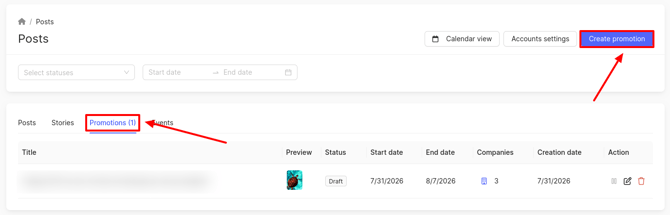
To edit a promotion, click the edit icon.
In the window that opens, select how you want to add companies for the promotion:
- Select companies manually – this option allows you to manually choose the companies you need.
- Select a brand – this will automatically select all companies belonging to one brand.
To select a brand, click the corresponding field and choose the desired option.
Attention! The promotion will not be added for companies that are not verified in the Yandex catalog. Learn how to verify here.
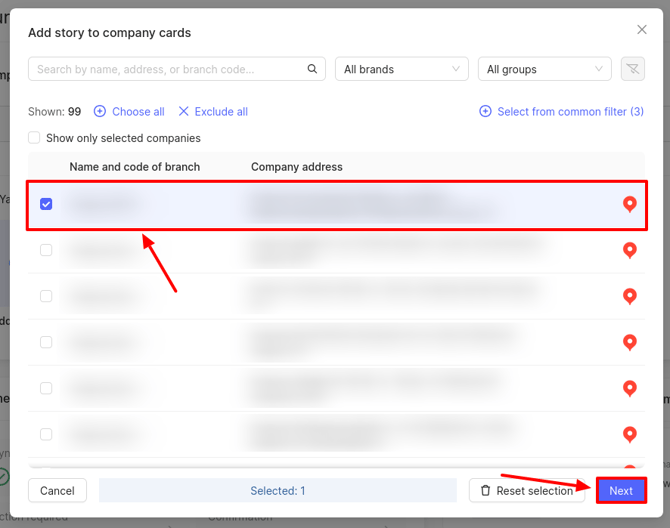
To select individual locations, go to the Companies tab and click Select. A company selection window will open.
Select the desired companies from the list and click Next. Closed and temporarily closed companies will be absent from the list — you cannot send a promotion to them.
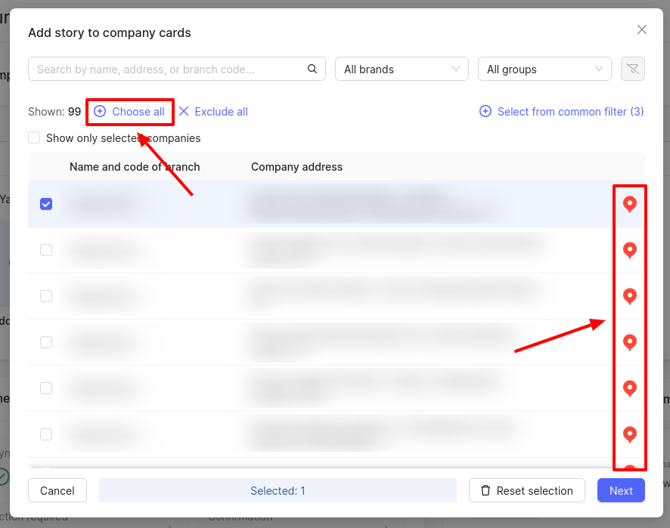
To select all companies, click Choose all.
Attention! This button will be unavailable if you have multiple brands. You must create the same promotion several times, selecting each brand individually. This is how the functionality works due to Yandex's business logic and limitations. Use the All brands filter to choose a brand.
A Yandex catalog icon appears in the right column of the list. If it is grayed out, make sure the source is verified. Learn how here. If the catalog is verified but the icon remains gray, contact your manager.
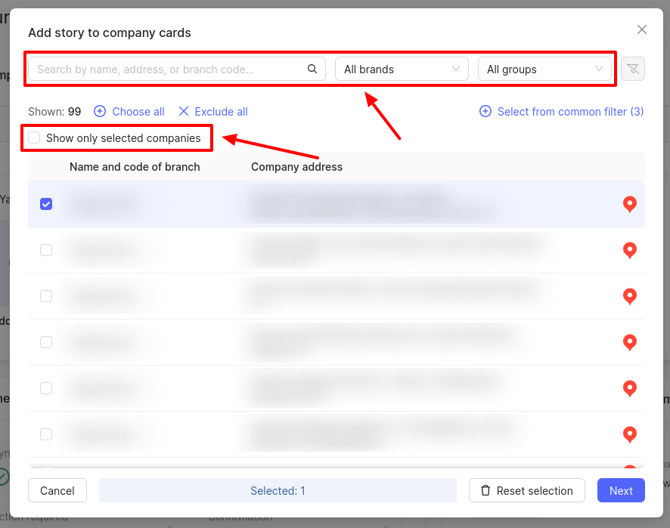
To find a specific company, use the search field by name or address, or apply filters by brands and groups. You can also view already selected companies to see which locations are missing — check the Show only selected companies box.
If you have filtered the companies you need using the top filter, you can select them by clicking Select from common filter. Learn more about this filter here.
Next, fill in the promotion details:
- Title – enter the promotion name.
- Description – provide a description of the promotion.
- Promotion period – set the start and end date and time.
- Promotion link – paste a link to your website or a page with full terms and conditions.
- Promotion photo – upload an image for the promotion.
Image requirements:- Only one image can be uploaded.
- File format: JPG or PNG.
- Minimum size: 900 × 480 px.
If you are not ready to publish the promotion yet, simply save it as a draft. To submit the promotion to Yandex, click Launch.
What data about created promotions is shown in the section?
Once created, the promotion appears in a table with the following columns:
- Title — the name you set when creating the promotion.
- Preview — click to view detailed information about the promotion.
- Status — the current state of the promotion. Possible statuses:
- Draft — the promotion is saved but has not been sent to the catalog.
- Planned — delayed publication: the promotion will be automatically sent on the specified date.
- In progress — the promotion is being sent to the catalog, the result is not yet available.
- Sent — the promotion has been successfully sent to the catalog.
- Paused — the promotion display has been temporarily stopped by the user.
- Deleted — the promotion has been deleted.
- Start date — the promotion start date and time.
- End date — the promotion end date and time.
- Companies — click to see the list of companies for which the promotion was created, along with submission details for each.
- Creation date — the date and time the promotion was created in the personal account.
- Actions — available operations: pause, edit, delete the promotion.
How to pause a promotion?
To pause a promotion, click the pause icon. It is available only for published promotions with the Sent status.
How to view promotion submission details for each company?
To see detailed information per company, click the Companies column.
A window opens with a list of companies and promotion submission statuses:
- Active — the promotion is currently running and displayed on the company's listing.
- Scheduled — the promotion has been accepted by the catalog but the start date hasn't arrived yet.
- Completed — the end date has passed.
- Paused — the promotion display for this company has been paused.
- Under moderation — the catalog is reviewing the promotion before publication.
- Rejected — the catalog has rejected the promotion for this company.
- Deleted — the promotion has been deleted from the catalog for this company.
- Pending — a response from the catalog for this company has not yet been received.