![logo2.png]](https://help.brandwizard.io/hs-fs/hubfs/logo2.png?height=40&name=logo2.png)
In this article, you will learn the following information:
How to view customer responses in the survey?
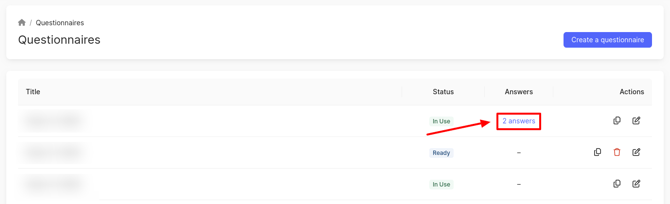
To access the page and see the responses provided by customers in the survey, click on the Answers field.
Attention! Data in this field will be available only for custom surveys. If you selected the standard version, a dash will be displayed in the field.
The Form responses section will open, where you can see fields with data. Only those input fields that you configured when creating the survey will be shown. The field names serve as keys to the corresponding input fields in the survey.
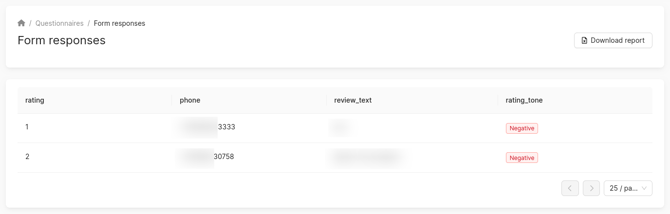
Keys are generated automatically during survey creation. You can change them if necessary. They are visible only for information input fields. More details about them can be found here.
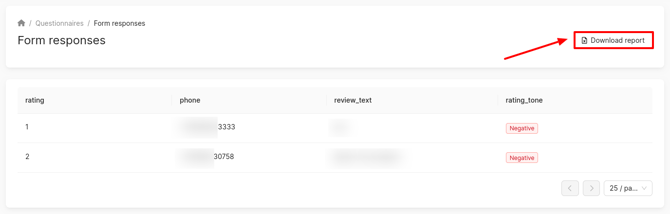
How to download a report on form responses?
To download a report on survey responses, click Download report. The requested report will be sent to your email in .xlsx format, which is specified in your profile settings. The data in the report is similar to the data in the responses section.