![logo2.png]](https://help.brandwizard.io/hs-fs/hubfs/logo2.png?height=40&name=logo2.png)
In this article, you will learn about:
- What is Multichat?
- Understanding channels
- How does it work?
- Creating an inbox
- Responding to messages
Welcome to Multichat! In this article, we will introduce you to the basics of working with your first customer dialogue.
As a Multichat user, you will be able to manage multiple conversations with different clients through various channels, all on a single convenient dashboard.
What is Multichat?
Imagine all your customer dialogues — emails, social media, WhatsApp, and website chat — are combined into a simple interface. That’s exactly what Multichat does for you! No more switching between different applications to reply to customers.
Understanding channels
Think of channels as different doors through which your clients can contact you. They include:
- Email support
- Technical support via website chat
- Social networks (Instagram, Facebook)
- Messengers (WhatsApp, Telegram)
- Chatbot
In Multichat, each connection channel is called a Inboxes.
How does it work?
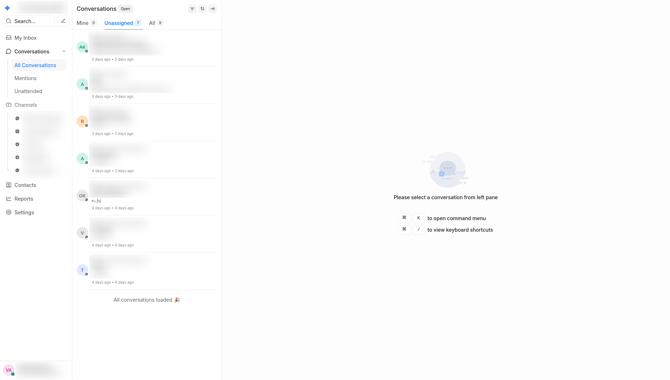
Depending on the channels you choose, your clients can contact you through any of them. When someone sends a message, it turns into a new dialogue in Multichat, which is displayed chronologically on your dashboard.
Here’s how your list of dialogues looks:
Creating an inbox
To start a dialogue with a client, you need to create a channel. Instructions for adding channels from all available inboxes are described in the Add Inboxes section of the documentation. You can review them here.
Responding to messages
When you receive a message, simply open the conversation and reply in the chat block. Your response will be delivered to the client via their original channel — whether it’s email, WhatsApp, or another platform.
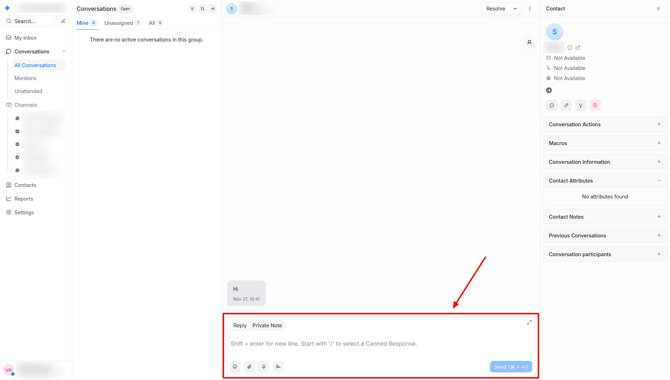
Don’t worry about auxiliary functions within a dialogue (such as personal notes, conversation actions, and macros). We will cover these in upcoming articles!