![logo2.png]](https://help.brandwizard.io/hs-fs/hubfs/logo2.png?height=40&name=logo2.png)
In this article, you will get acquainted with the following information:
- How to create/edit a questionnaire?
- What is displayed in the list of surveys?
- How to create a survey with the same settings as an already created survey?
- How to delete a survey?
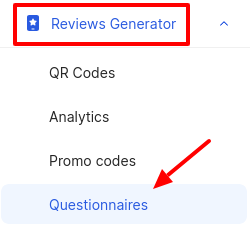
To go to the Questionnaires page, you need to click on the Reviews Generator in the menu and select Questionnaires from the drop-down list.
A page will open where you can create/edit/delete questionnaires for QR codes.
How to create/edit a questionnaire?
To create a survey, click the button in the top right corner. To edit a survey, click on the edit icon.
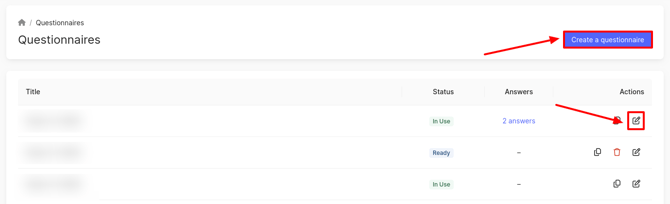
When creating, a window will open where you can select the survey you want to create:
- Collection of ratings and reviews — a ready-made template for collecting ratings and reviews. Ideal if you need feedback in the form of a rating or a text review.. You can learn more about it here.
- Custom form with questions — create a form with any questions. Add, delete, and change the order of questions according to your tasks.. You can learn more about it here.
What is displayed in the list of surveys?
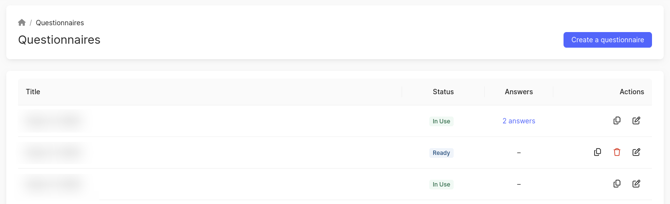
The list on the page displays:
- Title - the title of the created survey.
- Status:
- Ready - the survey is created and ready for use.
- In Use - the survey is being used in QR codes.
- Answers — the number of responses left by clients through this survey. Clicking on the field will open a page with all the collected information from the client. You can learn more about this here.
Attention! The data in this field will only be available for custom surveys. If you selected a standard survey, a dash will be displayed in the field. - Actions (copy, edit, delete).
How to create a survey with the same settings as an already created survey?
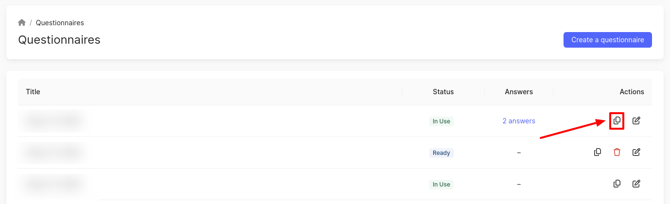
If you need to create a survey with the same settings as an already created survey, click on the copy icon next to that survey. A Create a questionnaire page will open with all the configured fields. You can make changes to the settings if necessary.
How to delete a survey?
To delete a survey, click on the corresponding icon in the Actions field.
Attention! Only surveys in the Ready status can be deleted.
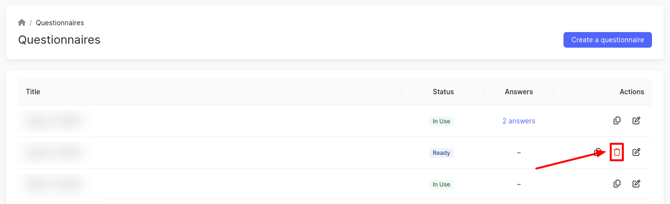
A window will appear, click on Confirm.
How to create/edit a survey can be found out further.