![logo2.png]](https://help.brandwizard.io/hs-fs/hubfs/logo2.png?height=40&name=logo2.png)
In this article, you will learn the following information:
- Audio notifications
- Push notifications and email notifications
- Enabling push notifications in the browser
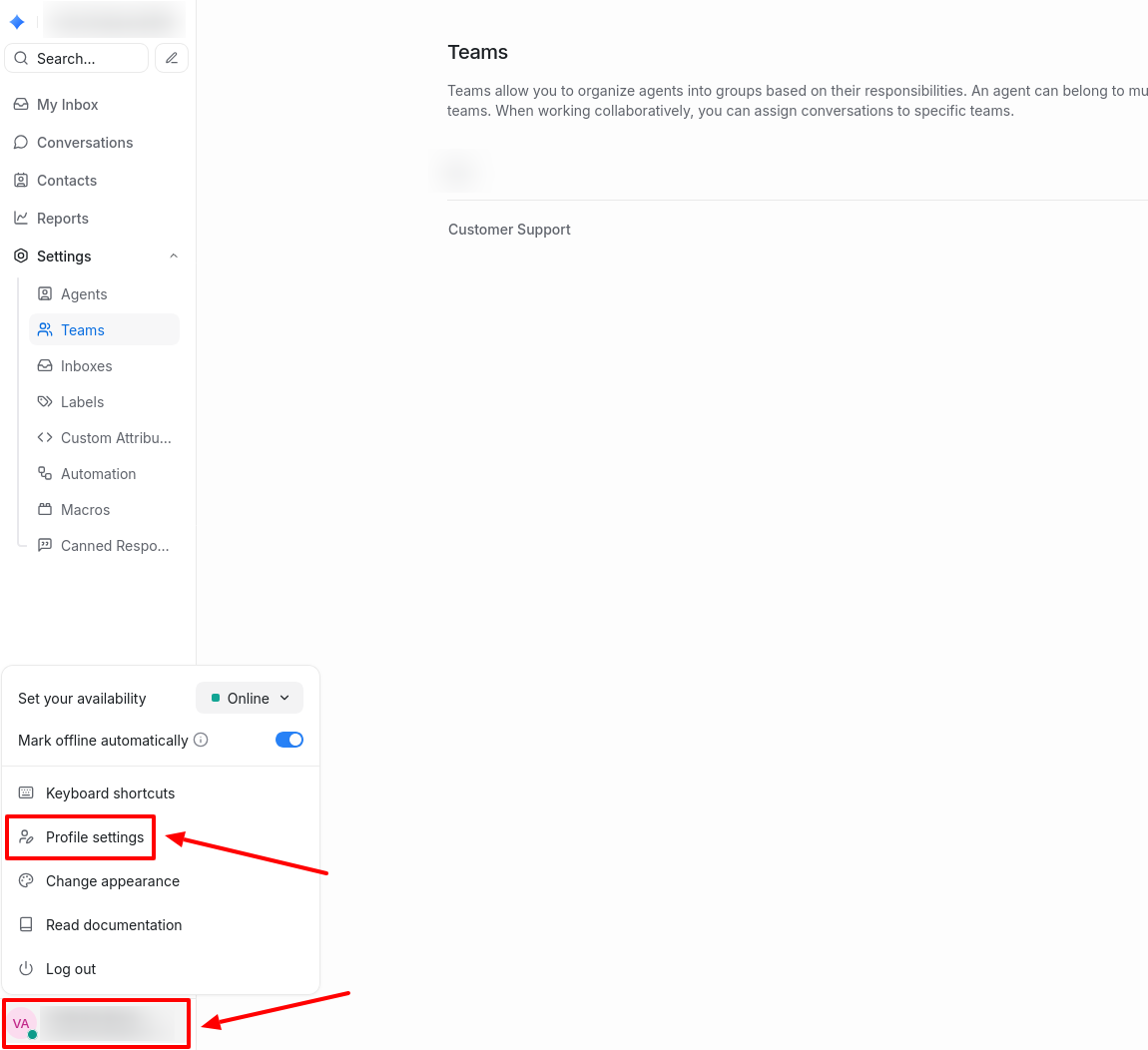
To access notification settings, click on your profile in the lower-left corner of the sidebar and select Profile Settings. Here you will find all settings for audio notifications, email, and push notifications.
Note: These settings apply only to your profile and do not change global settings.
Audio notifications
Audio notifications are available when Multichat is open in the browser. They are sent immediately according to your chosen settings:
- Alert tone. You have five sound options to choose from. You can listen to them by clicking the Play sound button. Select any of them based on your preference.
- Alert events for conversations. You can choose from three available options:
- My assigned conversations: notifications only for conversations assigned to you.
- Unassigned conversations: notifications for conversations without an assigned agent.
- Open conversations assigned to others: notifications only for conversations assigned to your colleagues.
For agents, it is recommended to enable audio notifications only for conversations assigned to them. This helps avoid missing important messages while reducing distractions from other conversations. For managers, it is better to select My assigned conversations + Unassigned conversations to stay informed about both your own conversations and those awaiting assignment. Choosing all three options will notify you of all incoming messages.
Note: Audio notifications work only when Multichat is open in the browser. If you want to receive notifications about any activity even when the application is closed, you can enable push notifications. More details are provided later on this page.
- Alert conditions. This setting determines when exactly a notification is triggered, allowing you to better control alerts and minimize distractions or stay updated on your conversations. Two options are available:
- Send audio alerts only if the browser window is not active. Ideal for minimizing distractions while working with active conversations.
- Send alerts every 30s until all the assigned conversations are read. This option ensures reminders every 30 seconds if there are unread conversations, helping you respond promptly.
Push notifications and Email notifications
Multichat can send you notifications about new events via browser push notifications as well as email, depending on your preferences. Select the type of notifications you want to receive.
Enabling push notifications in the browser
For the application to send you push notifications, it must request permission from your browser. To enable push notifications, toggle the switch Enable push notifications for your browser so you’re able to receive them.
After this, a permission request window should appear.