![logo2.png]](https://help.brandwizard.io/hs-fs/hubfs/logo2.png?height=40&name=logo2.png)
In this article, you will get acquainted with the following information:
How to set up a WhatsApp channel?
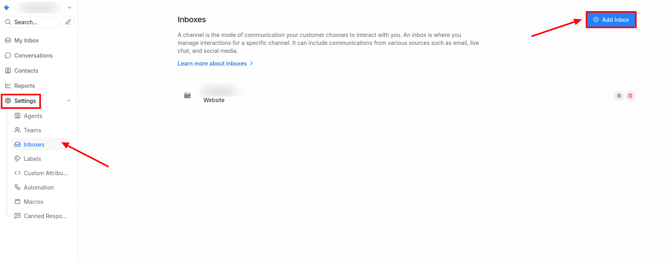
To create a WhatsApp channel, go to Settings → Inboxes → Add Inbox.
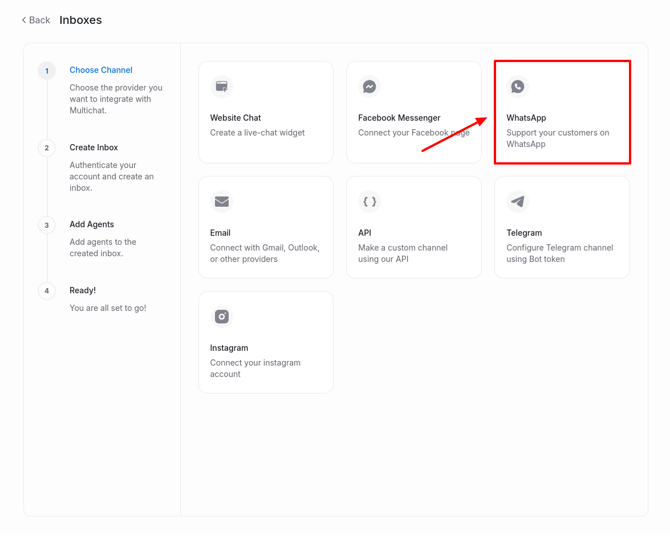
Select the WhatsApp channel.
Click on WhatsApp Cloud.
Click Connect with WhatsApp Business.
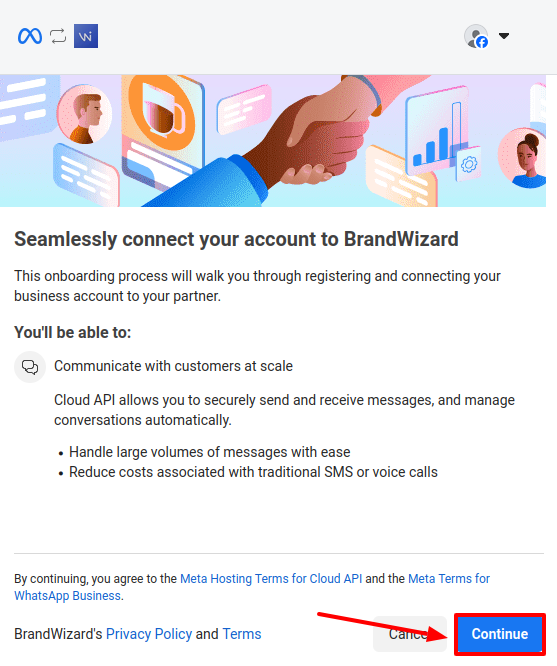
An additional window will open, where you need to log in via Facebook and click Continue.
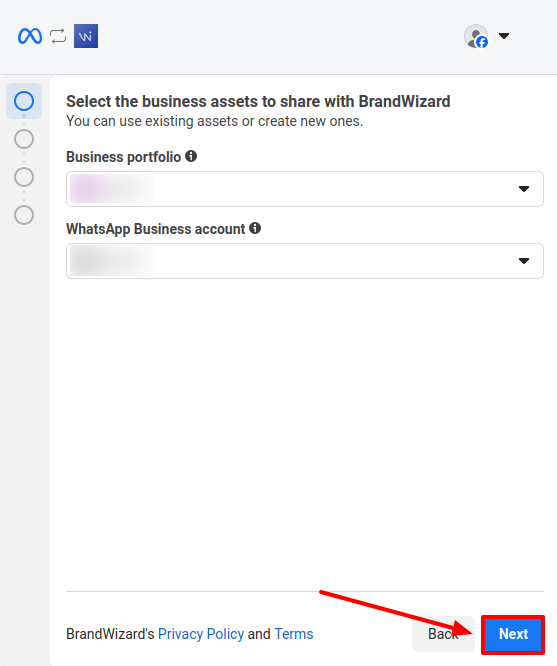
Select or create a Facebook business portfolio and a WhatsApp Business account (a dedicated account for company communications with clients on WhatsApp). Click Next.
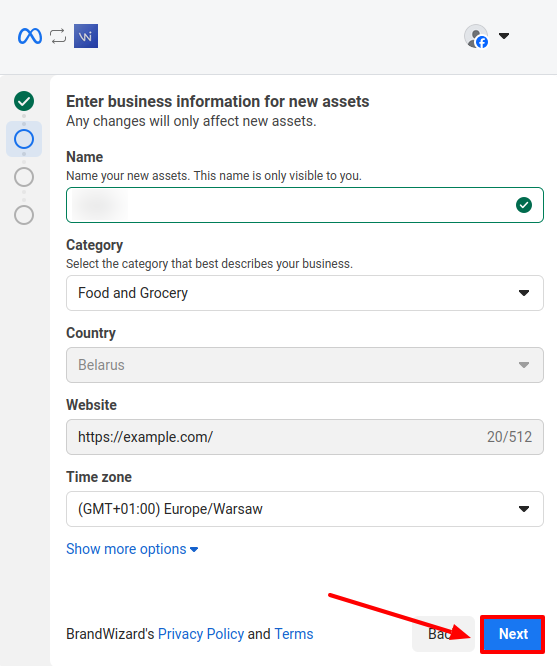
If you chose to create a WhatsApp Business account and/or a Facebook business portfolio at the previous step, the page shown below will appear. Fill in the necessary information about your company and click Next.
If you already have a Facebook business portfolio and a WhatsApp Business account, this step will be skipped, and you will see the next one immediately, as described below.
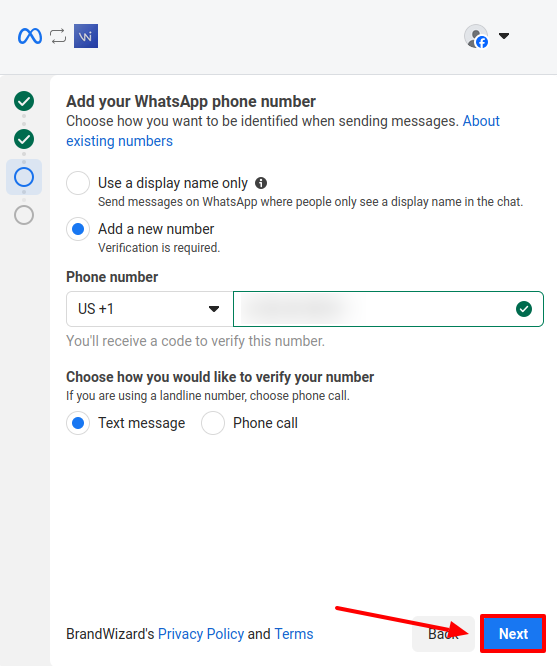
Add your WhatsApp phone number. You can choose Use a display name only. In this case, WhatsApp will generate a virtual number solely for sending messages. It cannot be used for SMS or calls. Alternatively, enter your phone number and select the verification method.
The option to Use a display name only may not be available if you are creating a new Facebook business portfolio.
Attention! Test numbers must not be used. Accounts can only be created with real phone numbers.
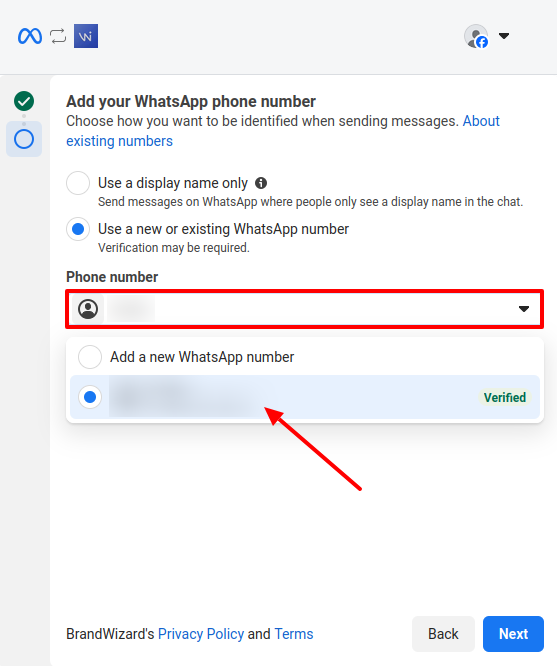
If you already have a registered phone number, you can select it from the dropdown list. In this case, you will not need to enter a verification code.
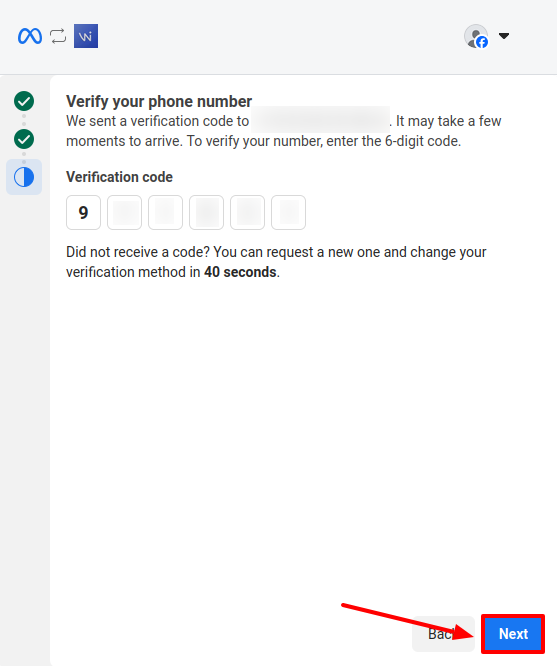
Enter the verification code and click Next.
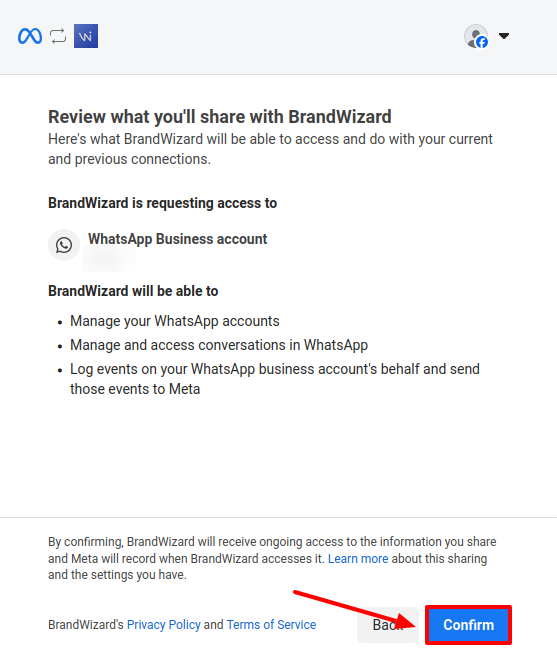
Review what you are sharing with the BrandWizard application and click Confirm.
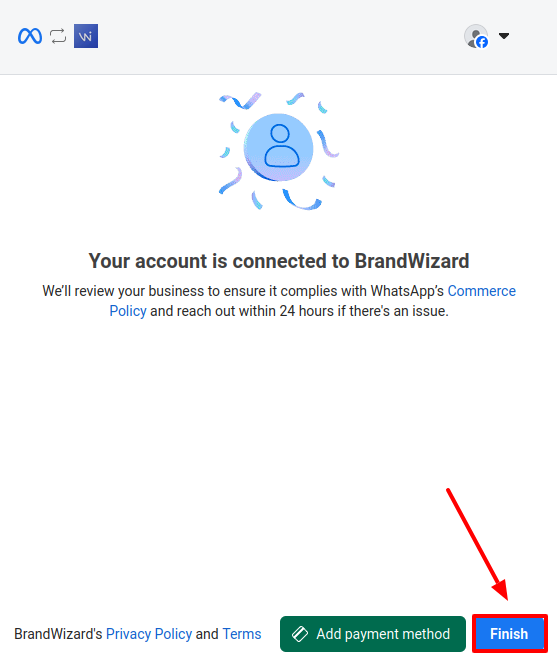
Now you can chat in WhatsApp. Click Finish.
Facebook will verify your company for compliance with commerce policies:
- Upload legal documents if Meta requests them during or after registration.
- Ensure that the display name in WhatsApp complies with branding guidelines to avoid rejection.
You can add a payment method, monitor message statistics, etc., in WhatsApp Manager.
Add agents to your WhatsApp channel.
You have successfully created a WhatsApp inbox. Now, when a customer sends a message to your WhatsApp page, you will be able to see it and respond through BrandWizard. To access the conversation in the created channel, click Take me there.
Additional channel settings
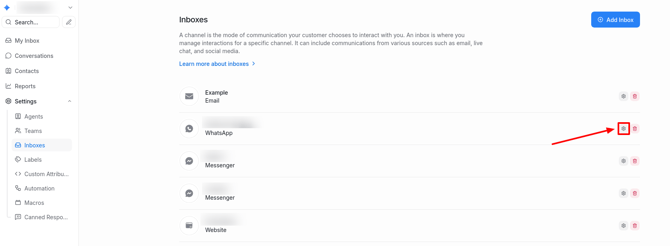
The created WhatsApp channel should appear in the Inboxes list. To view or change additional settings, go to Settings → Inboxes, then click on the gear icon on the WhatsApp channel.
You will see the following page:
"Settings" section
- Channel Avatar. Add a inbox image. Image requirements:
- Size: 15 MB.
- Format: JPEG/PNG.
- Inbox Name. Change the inbox name if necessary.
- API provider. This field cannot be modified.
- Enable channel greeting. After the customer sends the first message, you can set up an automatic response. Select Enabled.
- Channel greeting message: This field will appear if you enable channel greeting. Write the reply that the customer will see after sending their first message, e.g., "BrandWizard usually responds within a few minutes."
- Lock to single conversation:
- If you select Disabled – after closing the dialogue, new messages from clients will be received as separate new dialogues.
- If you select Enabled – after closing the dialogue, new messages will return to the existing dialogue, automatically reopening it.
After making changes to the settings, click Update.
"Collaborators" section
Click on the Collaborators tab. Here you can add or remove agents from the channel. You can also enable or disable automatic assignment of new conversations to agents added to this inbox. If needed, limit the maximum number of conversations that can be automatically assigned from the inbox to an agent. Click Update to save changes.
"Business hours" section
Go to the Business hours tab. In this section, you can set the working mode of your team related to the WhatsApp channel. To activate the working mode, check the box Enable business availability for this inbox.
- Once the checkbox is selected, it will be possible to write a message for customers that will be displayed outside working hours.
- You can also set working hours for each day of the week considering the selected time zone.
After adjusting the settings, click Update business hours settings.
"CSAT" section
Enable CSAT. After that, your customer satisfaction survey will be automatically sent at the end of the conversation. CSAT results can be viewed later in the Reports section.