![logo2.png]](https://help.brandwizard.io/hs-fs/hubfs/logo2.png?height=40&name=logo2.png)
In this article, you will learn the following information:
If CSAT surveys are enabled in your inboxes, you can analyze their results. You can add a CSAT survey to a conversation in the channel settings. To do this, go to Settings → Inboxes, then click the edit button (pencil icon) for the selected channel.
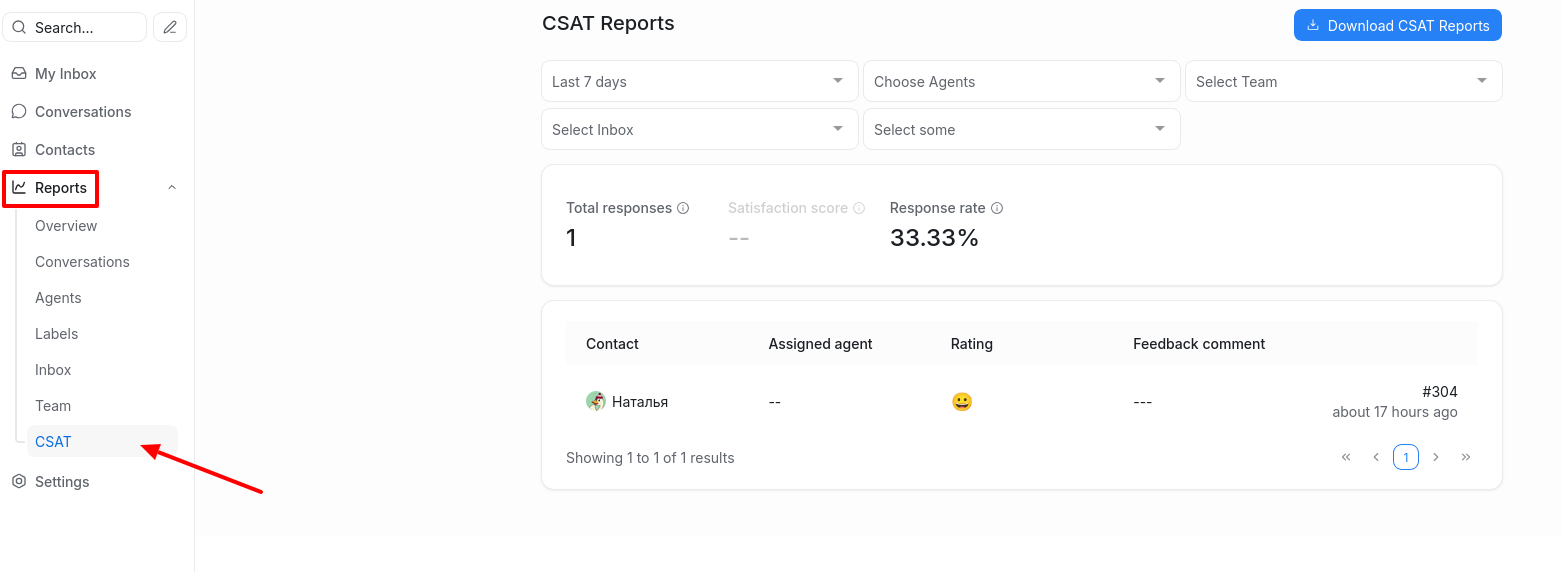
To view the report, go to Reports → CSAT.
Configuring CSAT reports
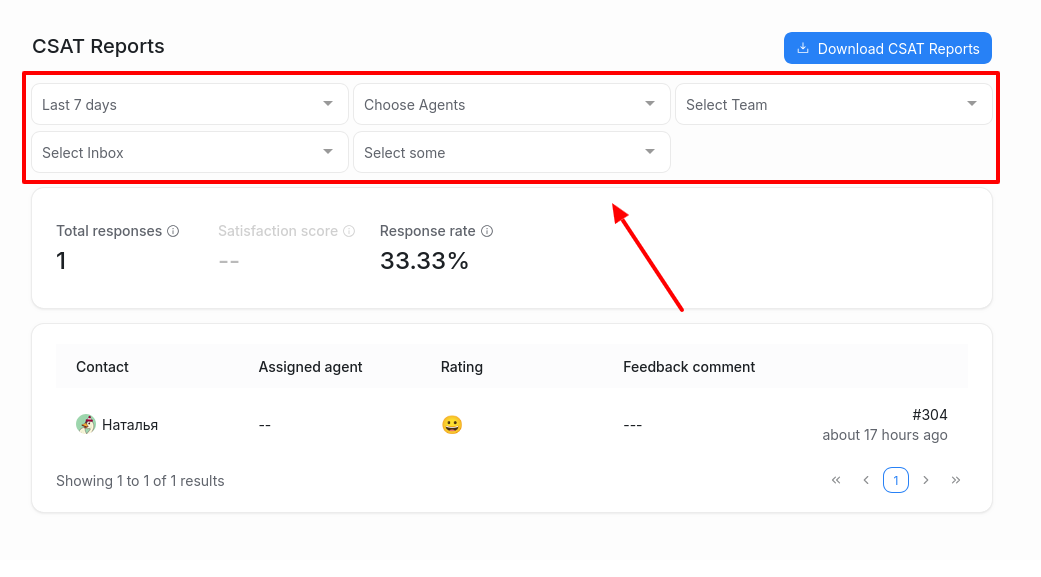
CSAT reports can be filtered by the following metrics:
- Time period – you can select the desired period for displaying the report. By default, the last 7 days are shown.
- Choose agents – you can analyze CSAT reports for specific agents. Choose one or more agents from the dropdown list.
- Select team – you can analyze CSAT reports for a specific agent team. Select the required team from the dropdown list.
- Select inbox – choose the inbox for which you want to analyze the CSAT report.
- Select rating – you can analyze CSAT reports by specific customer ratings. Select the desired ratings from the dropdown list.
Metrics in the CSAT report
At the top of your report, the following metrics are displayed:
- Total responses – the total number of responses received to your CSAT surveys during the selected period and for the selected agents.
- Satisfaction score – the average satisfaction score given by survey participants, calculated using the formula: (total number of positive ratings / total number of responses) * 100.
- Response rate – shows the percentage of customers who responded to the CSAT surveys sent. Calculated using the formula: (total number of responses / total number of CSAT survey requests sent) * 100.
- Rating scale – when prompted with a CSAT survey, customers are asked to rate their experience using an emoji scale. The CSAT report shows what percentage of participants used each emoji to evaluate their experience.
The bottom part of the report contains a list of all received responses. You can click on the conversation ID to open the corresponding chat.