![logo2.png]](https://help.brandwizard.io/hs-fs/hubfs/logo2.png?height=40&name=logo2.png)
In this article, you will learn the following information:
A macro is a set of sequentially saved actions, such as marking a conversation, sending an email transcript, attaching a file, and so on, which can be configured through the control panel.
As an agent, you often have to repeat the same set of actions. For example: when receiving a request to purchase a product, you assign it to the sales team, send a standard message about how to purchase it, add a "Sales" label, and move the conversation to on-hold.
Performing all these actions individually several times a day can be tedious and time-consuming. Instead, you can use a macro.
How to create a macros?
Go to Settings → Macros → Add a new macro.
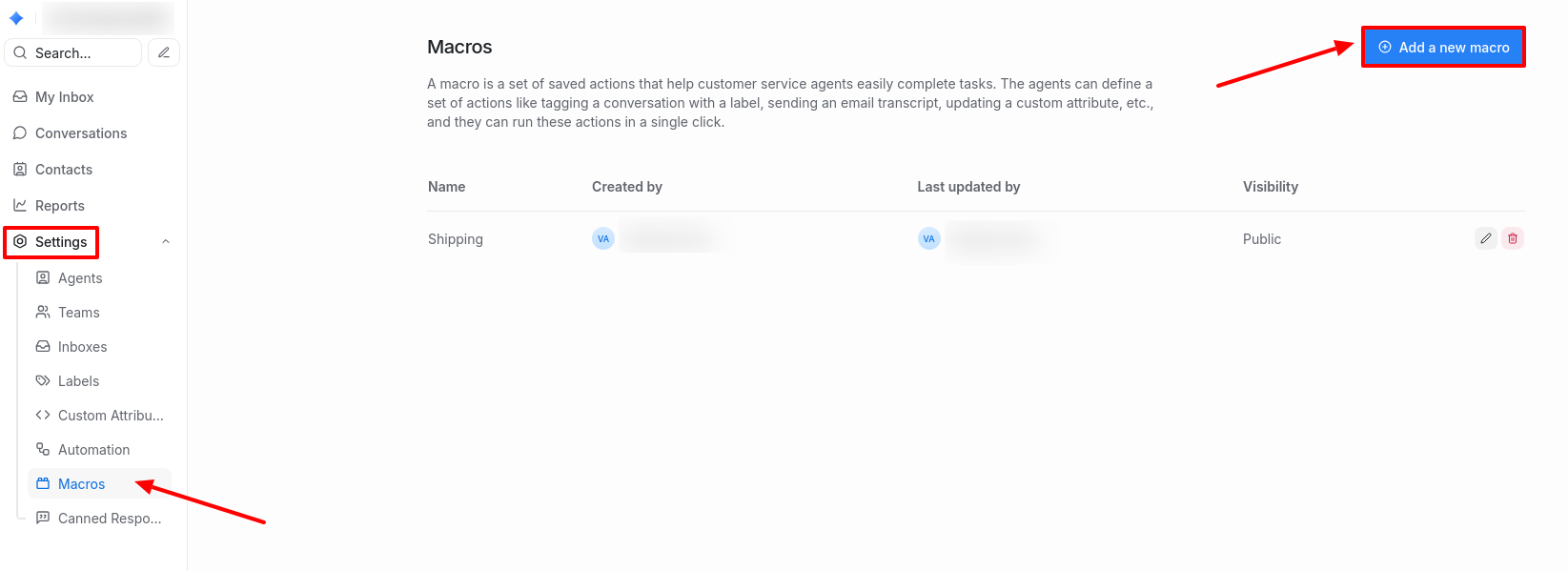
You will see the macro setup screen. Here, you can create a sequence of actions that will be executed when this macro is run. You can also name your macro to easily find it later in the right sidebar of the conversation.
Start by selecting an action from the dropdown menu. Currently, the available actions are shown below.
Choose an action and configure it accordingly. After completing it, continue adding other actions. Note that the order in which you arrange these actions determines the order of their execution.
Example of a macro:
Set the visibility of your macro. If you are creating it for personal use, select Private. If you want your team to be able to use it, select Public.
Click the Save Macro button located at the bottom right of the setup page.
Your macro is now ready to use!
How to edit or delete a macro?
To edit or delete macros, click the edit/delete button in the macro list.
How to use a macro?
In the sidebar of an open conversation, click on the Macros section.

This will display all macros created for your account — both personal and public.
Pre-view a macro if you are unsure about what actions it performs. To do this, click the "i" icon. A preview of the actions defined in that specific macro will appear.
Execute the macro by clicking the play button. All actions will be automatically executed in the specified sequence.