![logo2.png]](https://help.brandwizard.io/hs-fs/hubfs/logo2.png?height=40&name=logo2.png)
This article introduces the following information:
- How to create a custom attribute?
- How to use a custom attribute in a conversation?
- How to use a contact's custom attribute?
Multichat allows tracking additional information about your conversations and contacts beyond standard data such as name, email, and location. These additional data are called custom attributes and can be any information you wish to monitor. Here are some examples of custom attributes:
- Subscription plan
- Subscription date
- Registration date
- Most frequently ordered product
- Link to the ordered product
- Date of the last transaction
Custom attributes enable attaching additional information to a conversation or client, such as purchase history or account status. These data can be used for deeper understanding and segmentation of your customer base.
The only difference between custom and standard attributes is that standard attributes are updated automatically.
How to create a custom attribute?
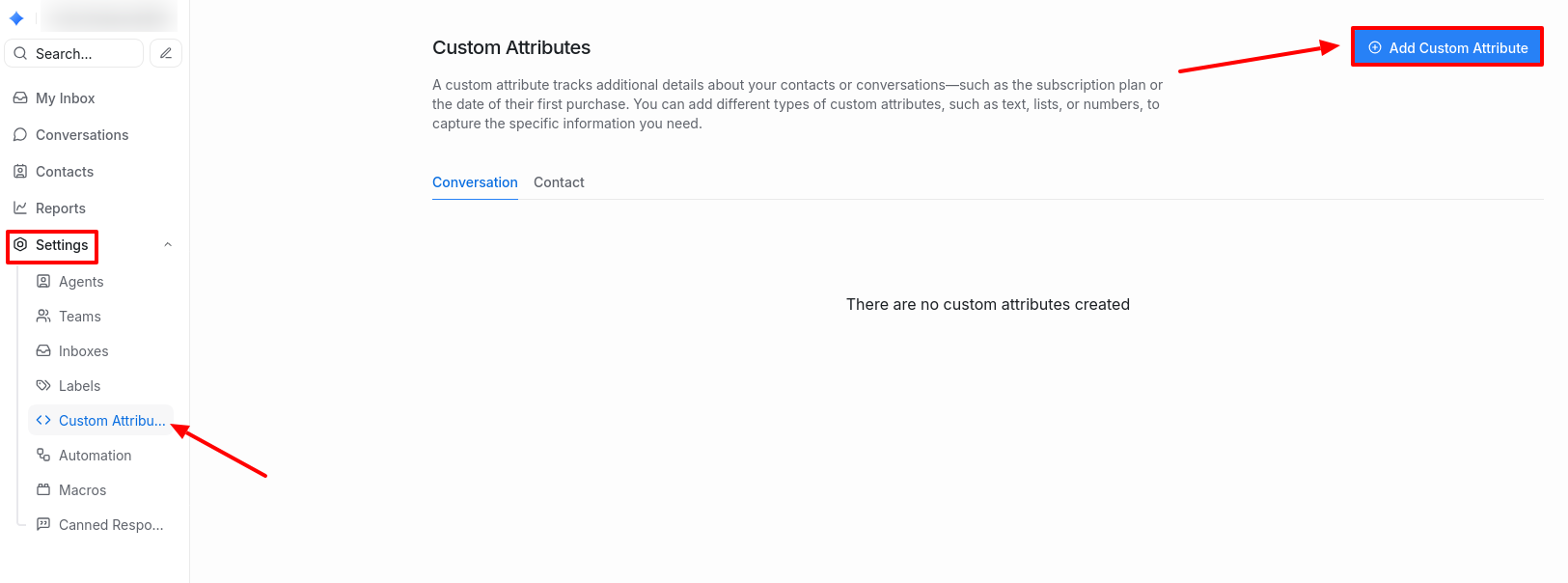
Go to Settings → Custom Attributes. Click the Add Custom Attribute button.
A window will open, where you need to fill in the following fields:
- Applies to (Conversations/Contact).
- Display Name (used in the interface).
- Key (a unique identifier assigned to the attribute).
Attention! You cannot create two custom attributes with the same key in an account. - Description (description of the attribute).
- Type (text, number, link, date, list, checkbox).
Check the box Enable regex validation if you want to allow only specific values in this attribute. This will display the Regex Pattern field. Regex patterns can be found online. In the Regex Cue field, specify an example value that an employee should enter in this attribute.
For example, if you create an Email attribute, the regex pattern should be: ([a-zA-Z0-9.-]+@[a-zA-Z0-9.-]+.[a-zA-Z0-9_-]+). In the next field, specify an example: example@mail.com.
After filling in the fields, click Create.
How to use a custom attribute in a conversation?
In the sidebar of an open conversation, click on the Conversation Information section.
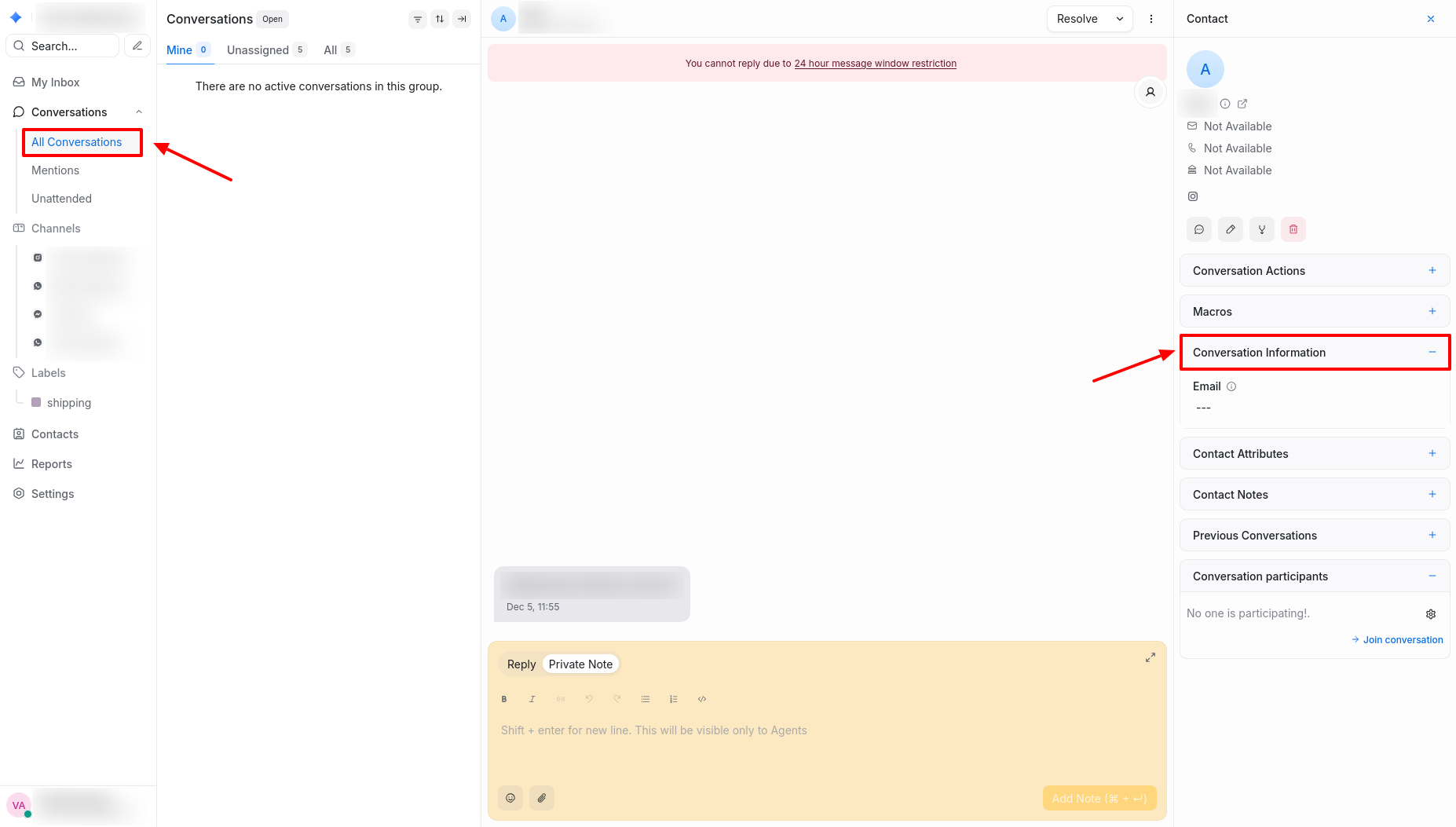
Select the required attribute and click the Edit Attribute button (pencil icon).
Fill in the attribute according to its type (list, checkbox, text, etc.).
To edit, delete, or copy, hover over the attribute and select the appropriate option.
How to use a contact's custom attribute?
To add contact attributes, follow a process similar to that for conversations, but in the Contact Attributes section on the chat sidebar.
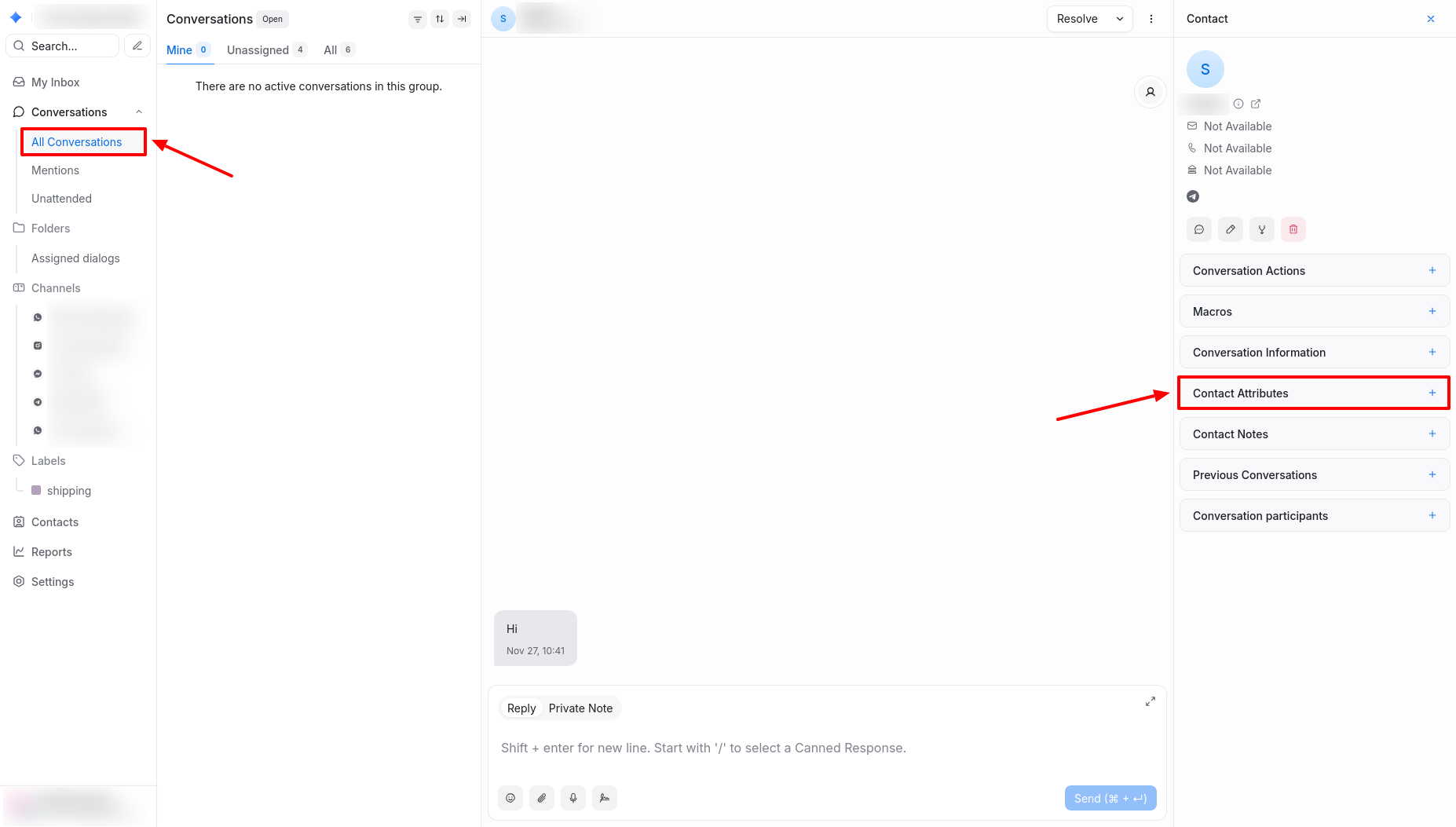
Select the necessary attribute and click the Edit Attribute button (pencil icon).
Fill in the attribute according to its type (list, checkbox, text, etc.).
To edit, delete, or copy, hover over the attribute and choose the option.