![logo2.png]](https://help.brandwizard.io/hs-fs/hubfs/logo2.png?height=40&name=logo2.png)
To upload reviews from other sources via a file, click the import icon in the upper-right corner of the page.

The Import reviews page will open. First, select whether you want to import reviews for the entire brand or for a single company.
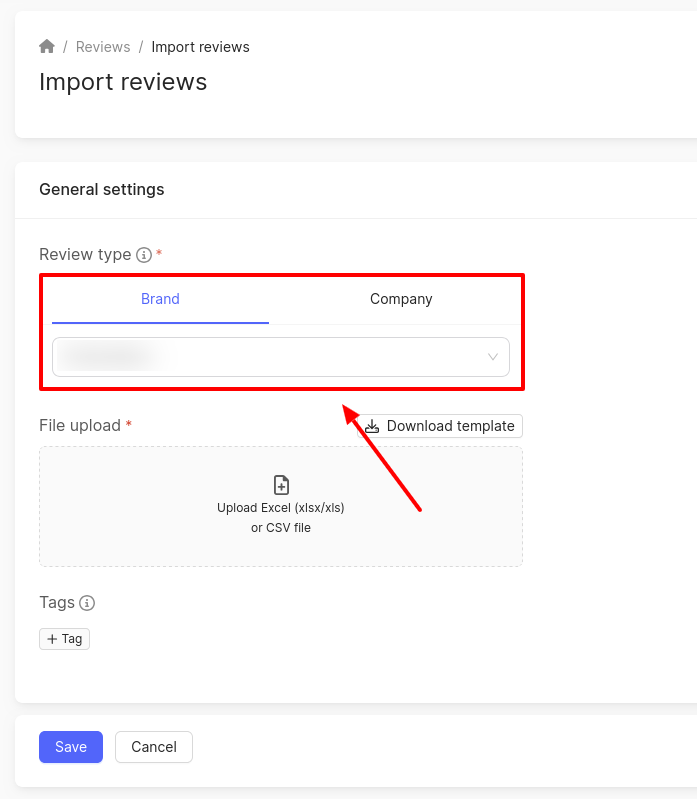
Then download the file template for uploading reviews and fill it in.
Fields available for filling:
- Source – where the review was left: web widget, call centre, mobile app, from the customer, social networks, email.
- Review URL – link to the review, if available.
- Name – the name of the customer who left the review.
- Phone number – the customer's phone number.
- Email address – the customer's email.
- Rating – the review rating from 1 to 5.
- Review text.
- Note – your note on the review.
Please note! The file must contain the Source field and at least one of the following fields: Name, Phone number, Email address, Rating, Review text.
Upload the file in Excel format (xlsx/xls) or CSV.
Please note! If errors are found in the file, they will be displayed below the upload form. In this case, no reviews from the file will be uploaded. Correct the errors and upload the file again.
Add tags to the reviews. They will be applied to all reviews in the file.
In the window that opens, choose the necessary tag and click Apply. Tags can be found by name and filtered by groups. The name of the group to which the tags belong is displayed next to them. If a tag does not belong to any group, nothing will be displayed.
To configure tags, click on Go to tag setup. You can read more about it here. If a new tag was created when going to tag setup, to have it displayed in the selection window click Refresh tags list.
After configuring all fields, click Save.