![logo2.png]](https://help.brandwizard.io/hs-fs/hubfs/logo2.png?height=40&name=logo2.png)
Your Service Level Agreements (SLAs) are arrangements between you and your clients regarding the level of service you commit to providing. SLAs specify parameters such as response time, service availability, and issue resolution time. These agreements help ensure service quality and maintain consistent, reliable support for your clients.
MultiChat allows you to track the following metrics:
- First response time: Indicates how long it takes an agent to respond to an initial client request or message. This is an important metric, as clients expect prompt attention to their questions or problems.
- Next response time: Shows the interval between client messages and employee responses. It helps sustain a constant level of interaction and move the conversation forward.
- Resolution time: Represents the total time required for an employee to fully resolve a client’s issue or request, from initial contact to the last message. This is a key indicator of work efficiency and customer satisfaction capabilities.
You can configure SLAs on the settings page. An administrator has the right to create and delete SLAs; however, note that once an SLA is created, it cannot be modified. To create an SLA, at least one trackable metric must be added.
Go to Settings → Automation → Add Automation Rule.
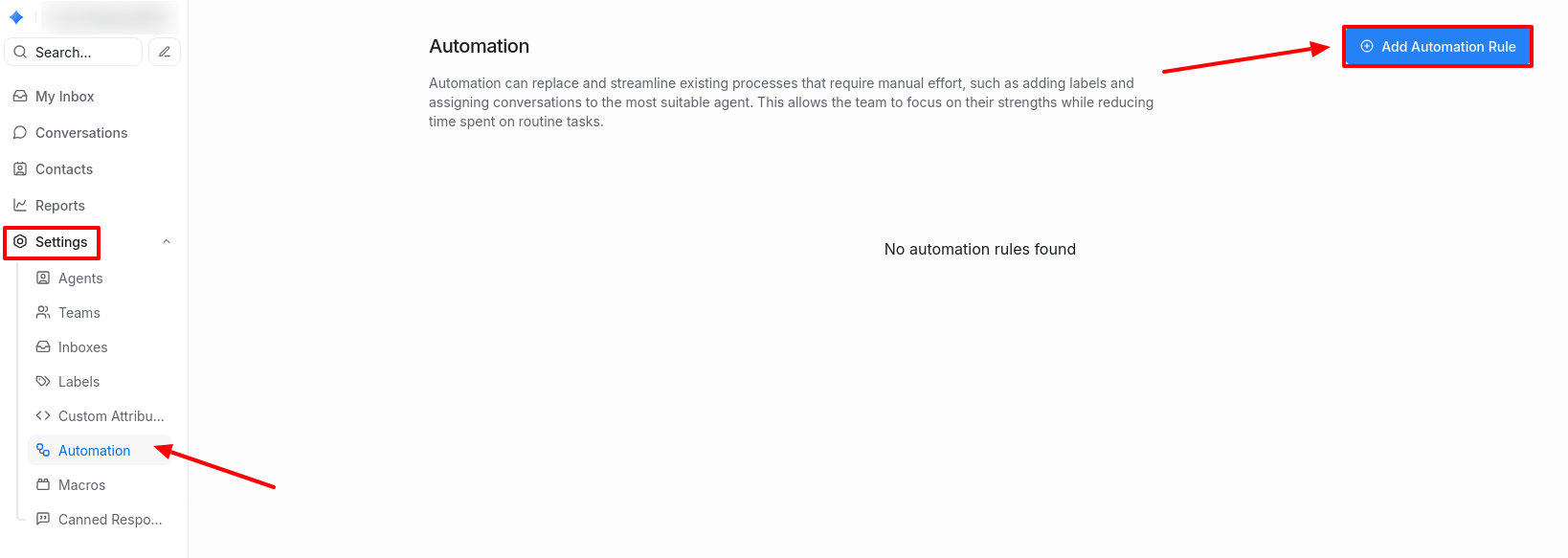
A window will open, where you should fill in the following fields:
- Rule Name
- Rule Description
- Event: Specify the event that will trigger this rule, e.g., when a conversation is created or a client sends a message.
- Conditions: Define the conditions under which the rule will be activated, e.g., conversation status is "Open".
- Actions: Specify the actions to be performed on conversations matching the conditions, such as assigning a particular agent.
After filling in the fields, click Create.
Once SLA conditions and events match, the SLA policy will automatically be applied to the conversation. After applying, the SLA cannot be removed from the conversation.
To modify or delete the rule, click the edit/delete buttons.
You can enable or disable the rule actions by toggling the switch.
If you want to create a new rule based on an existing one, click Copy. A duplicate of the rule will appear, which you can then modify.